2Paste the invite link you received. Both the mirall://join/… link and the bare code work.
3Optionally give the space a local name — only you will see it.
4Click Join Space.
Unless the invite was set to auto-approve, joining is a request: your screen reads Waiting to be let into the space until an existing member approves you. You can leave the window open — you'll be admitted automatically as soon as a member is online, and you don't need to be online at the moment they approve. Until then the space's contents stay closed to you, and the only action available is Cancel request.
If a member turns you away, a notice reads Your request to join <space> was declined, and it stays until you close it.
Once someone approves you, the space opens and its files appear. If the invite had auto-approve turned on, nobody has to decide — you are let in as soon as your device reaches a member of the space.
An invite link has an expiry. If yours has lapsed, Mirall tells you the link has expired — ask the person who sent it for a new one.
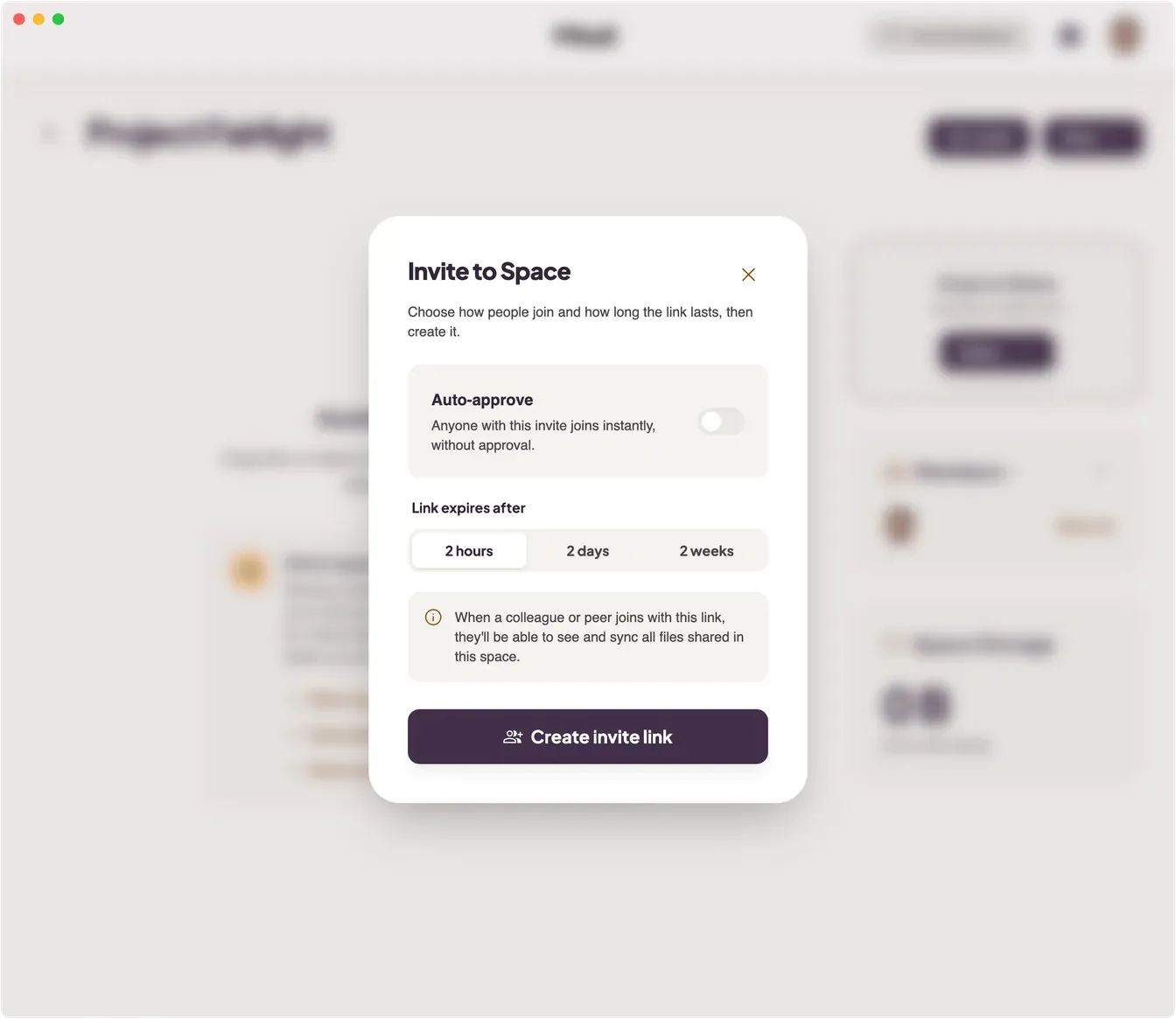
Open the space and click Invite. The dialog asks you two things before it mints a link:
Auto-approve — off by default. Leave it off and everyone who uses the link asks to join, and you approve each one. Turn it on and nobody has to approve: anyone holding the link is let in as soon as their device reaches a member of the space.
Link expires after — 2 hours, 2 days, or 2 weeks. After that the link stops working and Mirall refuses anyone who tries to use it.
Click Create invite link. Mirall shows a single mirall://join/… link, tagged with the choices you made, and a Copy button. Send it however you like — chat, email, anything. The same link works for as many people as you want to admit, until it expires. Change takes you back to adjust the settings; Done closes the dialog.
The link carries the space name, so the person joining sees what they're joining. It does not carry the key to the space — that is handed over by a device that is already a member, so someone has to be online and reachable when the link is used, auto-approve or not.
When someone uses an invite that isn't set to auto-approve, they stay outside the space until a member lets them in. Any member can do this — not just whoever created the space.
A banner appears at the top of the space reading “<name> wants to join”, with Approve and Deny beside it. Approving hands them the key to the space's contents; denying turns them away.
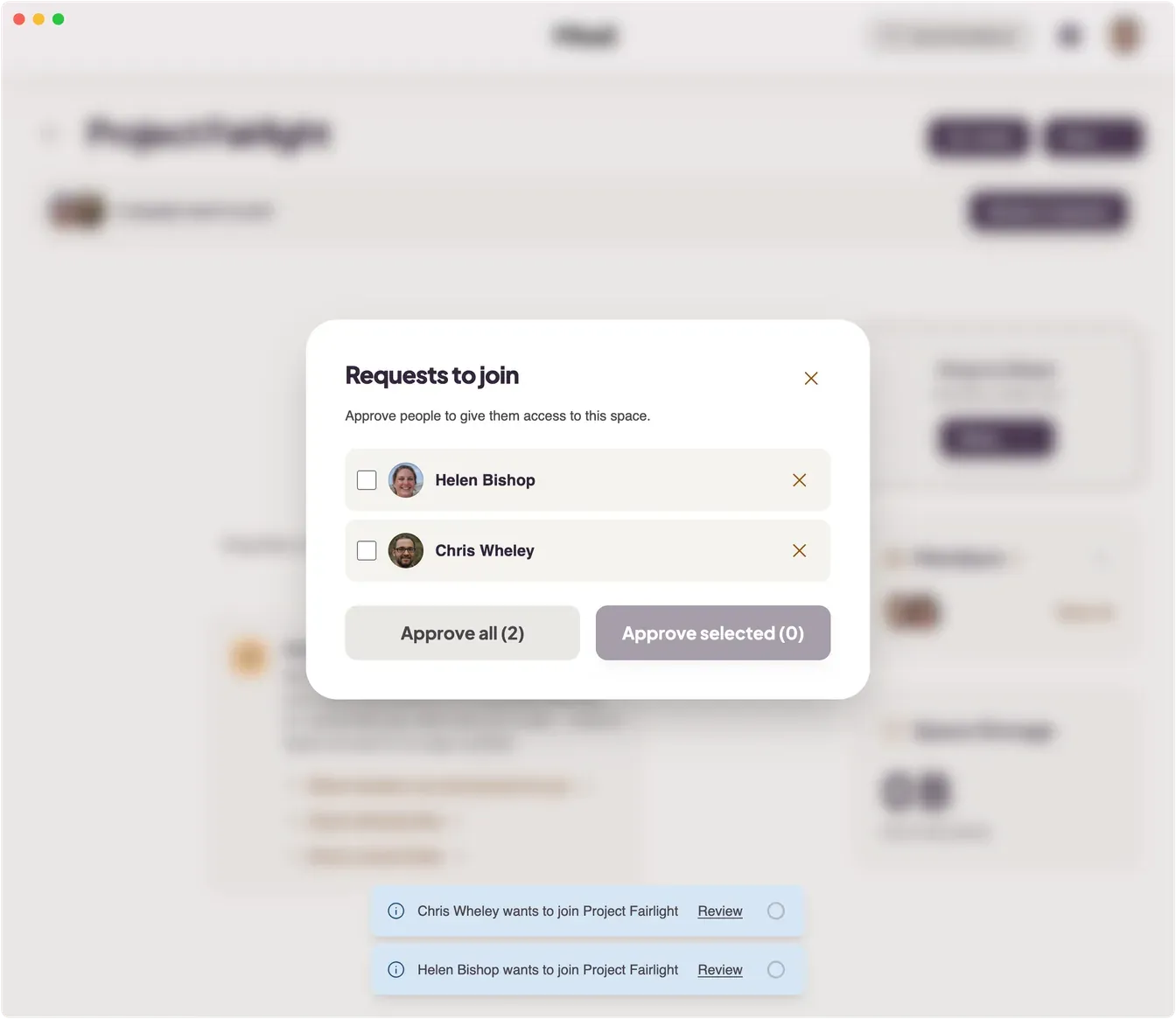
When several people are waiting, the banner collapses into a stack of avatars and a count — “3 people want to join” — with a Review button. That opens Requests to join, where you can tick individuals and Approve selected, take everyone at once with Approve all, or deny someone from their row.
Requests reach you in three places: the banner inside the space, a notice in the app with a Review button that takes you there, and a “1 waiting” pill on that space's tile in the Shared Spaces overview. The notice only appears while Mirall's window is open — there is no desktop notification for join requests, so one that arrives while the window is closed waits for you inside the space.
The notice for a request stays up until you close it or the request is settled — newer notices don't push it off the screen.
A request only needs handling once. As soon as any member approves or denies someone, the banner clears for everyone else in the space. An approval can't be taken back: if you deny someone another member has already let in, Mirall tells you <name> has already been approved and they keep their access.
Someone follows your invite link, their screen reads Waiting to be let into the space, and nothing appears on yours. That almost always means the request never reached a member's device — not that you missed a button.
1Check both devices are running Mirall. A join request travels straight from one device to the other, so a member of the space has to be online and running Mirall at the moment the link is used. A closed app or a sleeping laptop on your side is enough to stall it. Running in the background counts — Mirall in the menu bar or the notification area is reachable.
2Look where the request actually appears. The banner is inside the space. From the Shared Spaces overview all you get is a “1 waiting” pill on that space's tile. Mirall also raises a notice with a Review button, but only while the window is open — there is no desktop notification for join requests.
3Check your own connection. Open your Profile page and click Connection. If the headline reads Connecting to the Mirall network… rather than Network is healthy, nothing can reach you yet. Read the Suggestions under the headline — that is where the warnings about your network type appear, such as Your connection uses changing ports or Your network keeps dropping traffic to the Mirall network. A relay carries the connections a network like that will not.
4Rule out a firewall or a VPN. Mirall connects over UDP, and a VPN, a company network, or a firewall that blocks it will stop two devices finding each other. On Windows, open Windows Security → Firewall & network protection → Allow an app through firewall and check that Mirall is ticked for both Private and Public — the prompt shown on first launch is easy to dismiss by accident. If you are on a VPN, try again with it off. Sharing a phone's connection has the same effect: both devices end up behind the carrier's network, where a direct connection often cannot be made.
5Leave both apps running. A device that is waiting keeps knocking on its own, so once you are reachable the request arrives without anyone having to paste the link again.
Auto-approve changes none of this. It removes the decision, not the hand-over: the link carries the address of the space, never the key to it, so a device that is already a member still has to be reachable to let someone in. Until one is, the person joining waits exactly as they would without it.
Open the space, open the More menu, and choose Add to Favorites. Back on the Shared Spaces screen you can then filter the list by All Spaces or Favorites. Once a space is pinned, the same menu entry reads Remove from Favorites.
Leave a space
Open the space, open the More menu, and choose Leave Space. Mirall cancels any in-flight transfers and drops the space's records from your device. Files you've already downloaded, and any folder you were mirroring, stay where they are — they're yours.
If you're waiting to be approved rather than already a member, the same button reads Cancel request and simply withdraws your request.
Replace a space marked Unsupported
A space made by a much older version of Mirall carries a red Unsupported badge beside its name and a banner saying it can no longer be used. It can't be converted, so move what you need into a new space.
The space stays visible and you can still read what it holds, but the parts that would change it are closed off: Invite and Edit Space are greyed out, and the Drop to Share zone is gone, so nothing new can be shared into it.
1Create a new space from the Shared Spaces screen.
2Invite the same people to it, and approve them as they ask to join.
3Share your folders and files into the new space.
4When everyone has moved across, open the old space's More menu and choose Leave Space.
The Space Storage panel still works on an unsupported space, so you can see what it takes up before you go, and leaving reclaims it. Anything you already downloaded from it is an ordinary file on your disk and stays there after you leave.
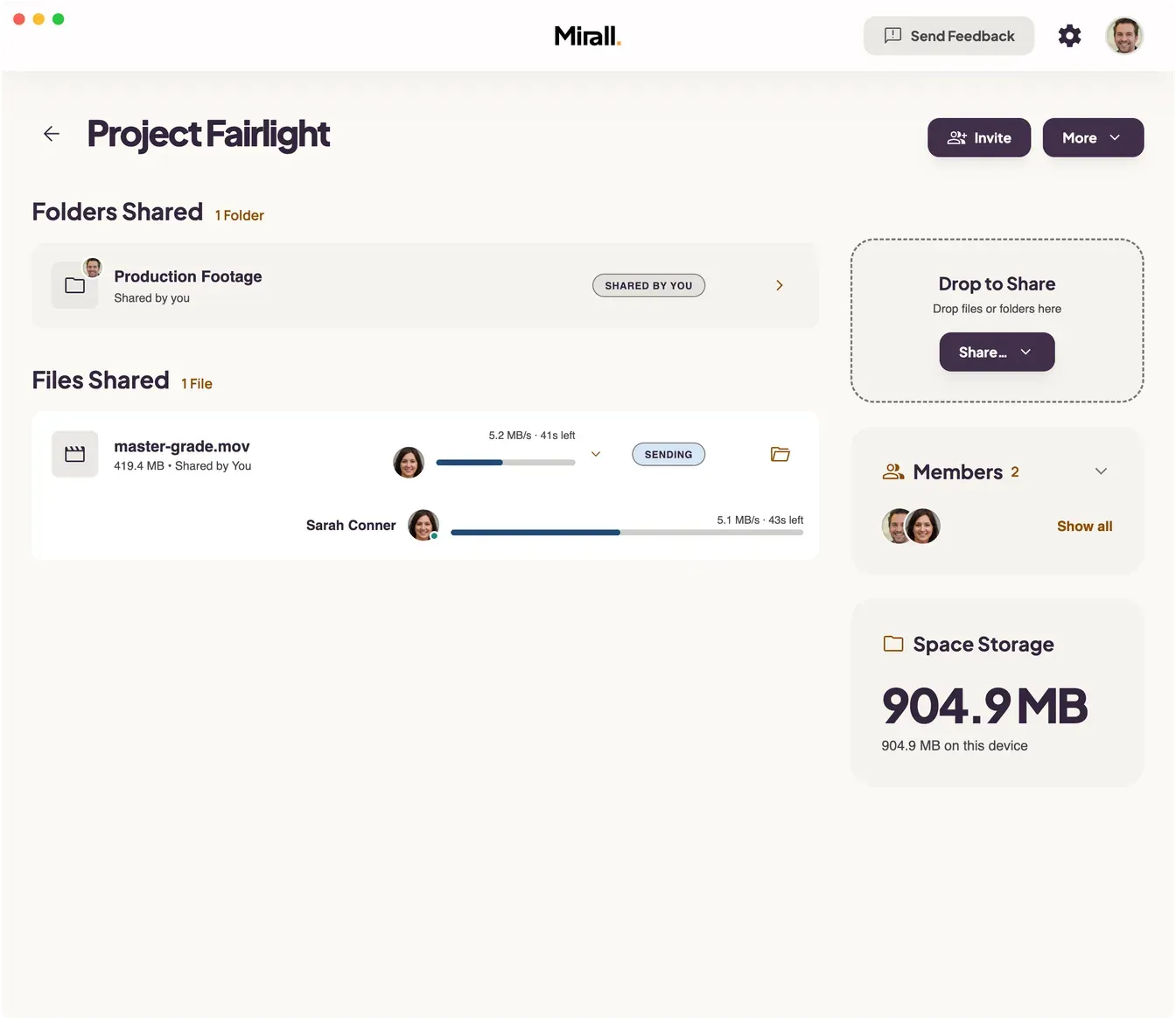
Drag files onto the Drop to Share zone in the sidebar, or use Share… to pick them from your computer. While you drag a file over the space, the drop zone grows to fill the whole area, so you don't have to aim carefully. Mirall offers the file to the space right away.
Mirall shares the file in place, straight from the original on your disk. Sharing never doubles a file's disk usage, and when you edit a shared file, the change is picked up where it lies.
There's no size limit. Hundreds of gigabytes, or a file into the terabytes, all work the same way — content is streamed in chunks rather than uploaded as a whole. Mirall does need a moment to index a file before sharing can start, so expect a short Preparing step on something that large. Members waiting on it can watch that preparation progress rather than staring at a blank spinner.
Want to share a whole folder instead of picking files? See Share a whole folder.
Download a file
Click the download button on any file shared by another member. The file transfers directly from their device to yours, showing live progress, average speed, and an estimate of the time remaining. Downloads land in your chosen download folder.
When a download finishes, a green shield appears next to the file. That's Mirall confirming the contents it received match the owner's original exactly.
If your network drops or the member you're downloading from goes offline, the transfer pauses on its own and picks back up from where it left off once that person is back. A member who has set an upload limit is a different case — they are still there, just sending slowly — so the transfer waits its turn instead of failing, and an interrupted download keeps retrying on its own for as long as it makes progress. You can also take control by hand — the buttons on a file row change with its state:
Pause Download — stop a running download. Its progress is kept, so resuming costs you nothing.
Cancel — stop a running download outright and throw away what's been received.
Resume — continue a paused download from where it stopped.
Discard Partial — throw away a download that's paused or stalled and free the space it was using. A partly downloaded file whose owner is offline keeps this button.
Retry — reattempt a download that ended in an error; Dismiss clears the failed row instead.
Some failures are on your side, and the row names them: Disk full, Permission denied when Mirall can't write to the download folder, or Download folder unavailable. Mirall stops retrying those until you fix the cause, then starts the download again on its own while the sharer is online. A full disk is the one exception: if the disk filled up partway through writing, free some space and press Retry.
In-progress downloads are written to a .mirall.part file and renamed to their real name only when the transfer completes — an interrupted transfer can't leave a half-written file under its final name.
A mirrored folder has no per-file download controls. To hold or stop everything a folder is pulling, use the mirror's own Pause syncing, Resume syncing, and Unmount Mirror actions, or the Pause in the band above its file list.
For any file you share, Mirall shows you who is pulling it right now.
While someone downloads a file you've shared, their avatar appears on that file's row, along with a combined progress bar, the transfer speed, and an estimate of the time remaining. If several people are downloading at once, their avatars stack up with a count.
Click the row's indicator to expand it. You'll see each person individually — their name, how far along they are, their own speed, and their own time remaining. Someone who has paused shows as Paused; someone who has dropped offline mid-transfer shows as Waiting.
People can ask for a file before you've finished indexing it. While the indexing bar is showing, their avatars sit beside it with a count — 2 waiting — and each of them reads Waiting for indexing in the expanded list. Quitting Mirall at that point leaves them waiting until you're back.
This works for loose files in a space and for files inside a folder you share. It only appears on files you own — you don't see other people's downloads from other people.
Unshare a file
Use a file's menu and choose Unshare from Space to remove a file you added so it's no longer offered to other members. Files they've already downloaded stay on their devices — unsharing only stops offering new copies. Your own original is untouched.
Folders
Share a whole folder
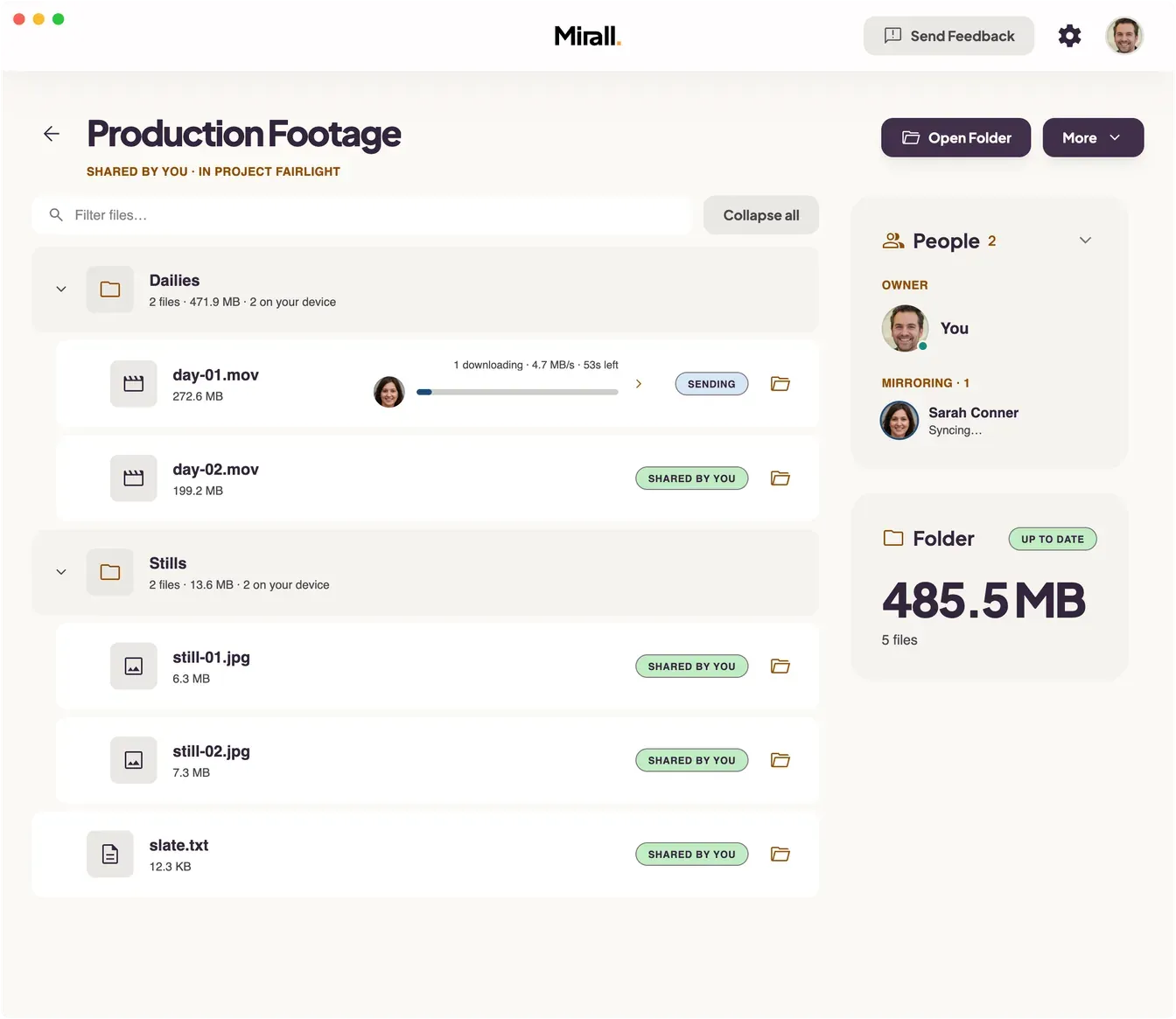
Share a folder into a space and Mirall keeps it in sync — add, edit, or remove files and everyone in the space sees the change automatically. Subfolders come along too.
1Open the space you want to share into.
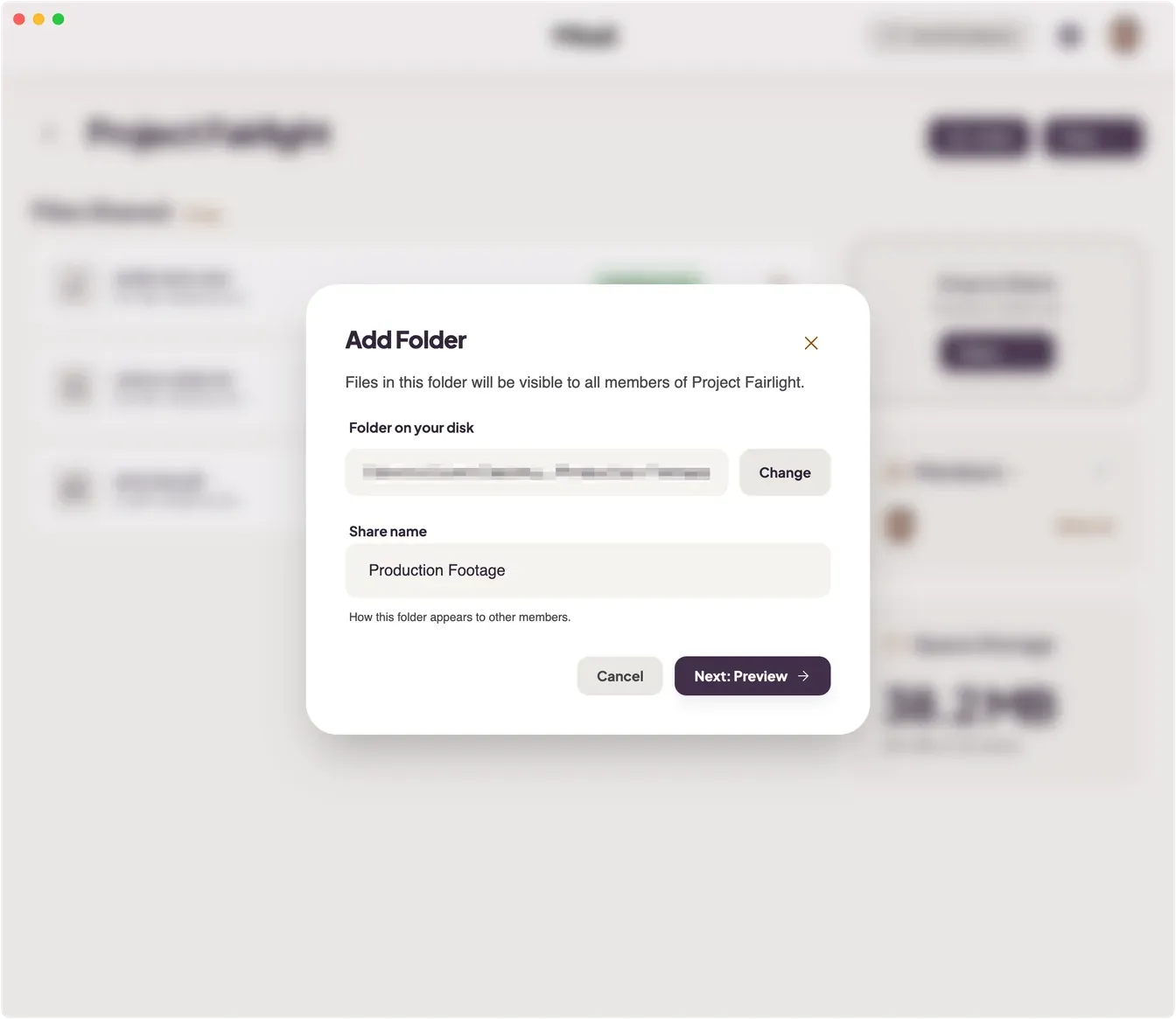
2Open Add Folder from Share… in the sidebar, the File menu, or Cmd/Ctrl + Shift + U.
3Choose a folder on your computer with Browse… and give it a share name — how it appears to other members. The name must be unique within the space.
4Click Next: Preview. Mirall scans the folder and shows what it's about to share — the file count and total size.
5Click Add Folder. Mirall starts offering the folder's files. Changes you make to the folder later sync to the space automatically.
Folders you share are marked Shared by you. Mirall serves the files straight from the originals, so sharing a folder never doubles its disk usage.
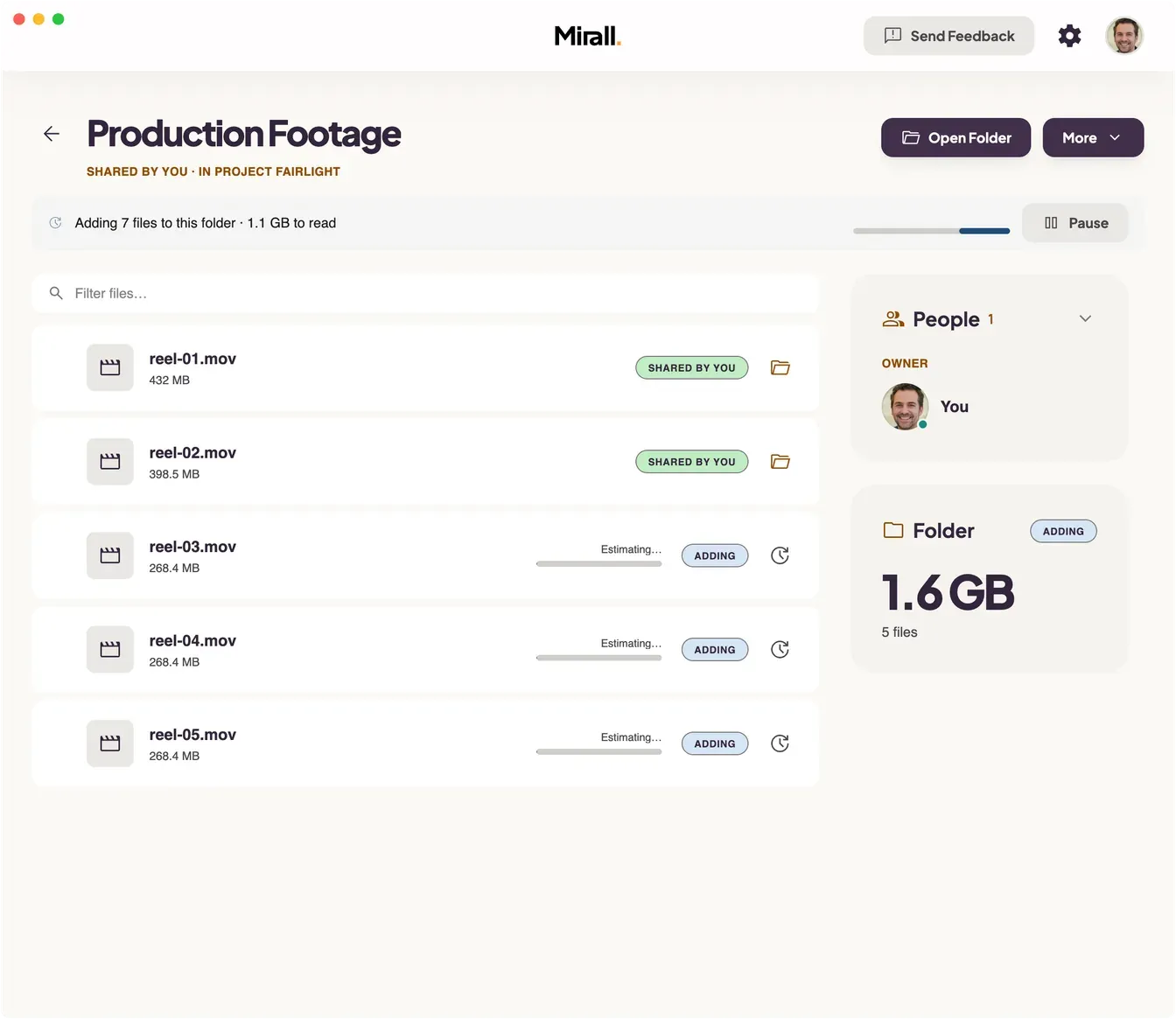
Mirall reads through a folder you share before it can offer the contents to anyone. While that's under way a band above the file list tells you how much is left, and lets you hold it.
1Open the folder from its card in the space.
2The band reads Adding 6 files to this folder, followed by how much there is left to read. Before the count is known it reads Looking for files to add….
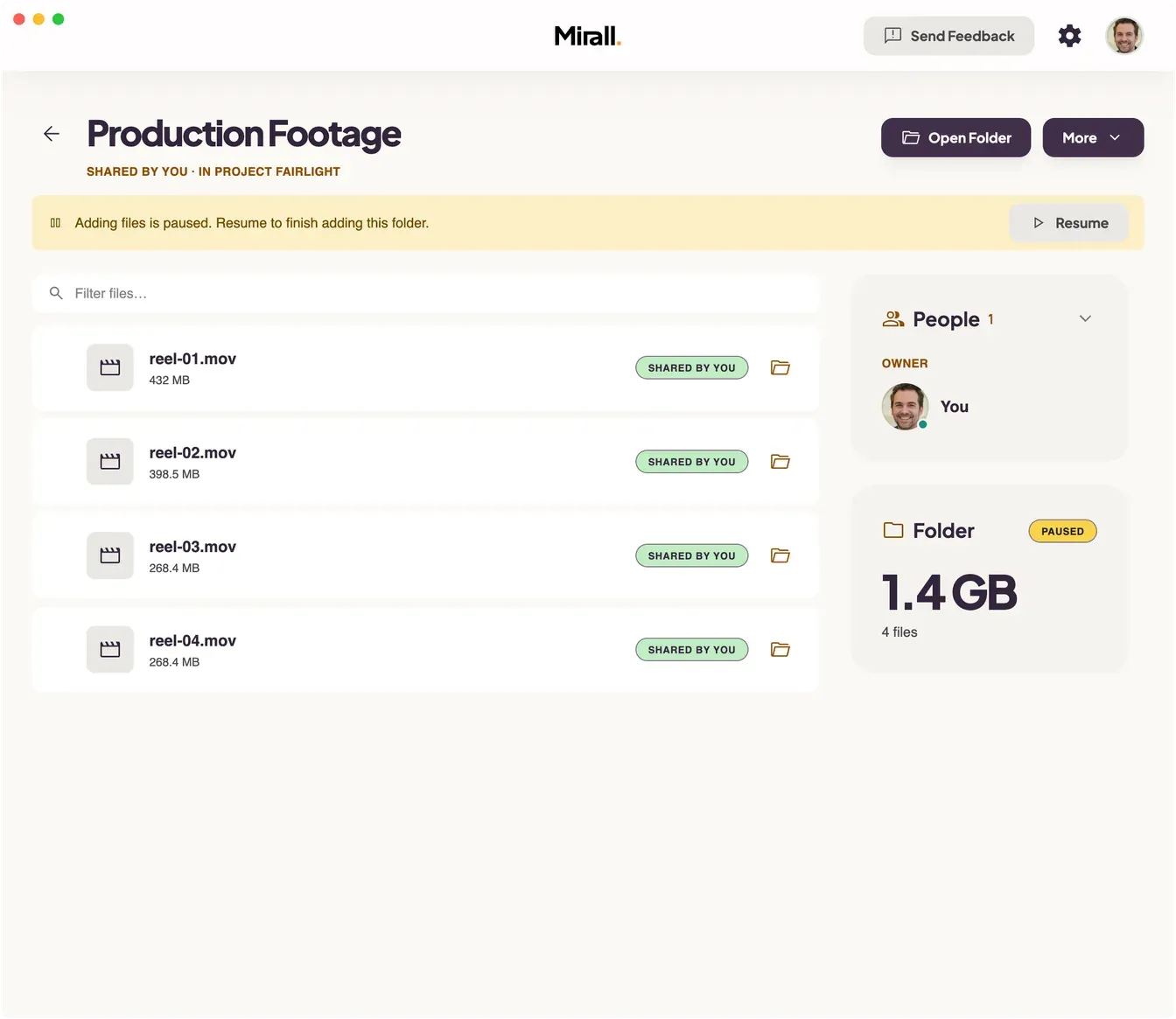
3Click Pause in the band to hold the queue where it is. The band turns amber and reads Adding files is paused, the Folder tile beside the list reads Paused, and so does the folder's card in the space.
4Click Resume to carry on from where it stopped.
A pause is remembered: the folder stays paused until you resume it, and quitting Mirall and starting it again leaves it paused. That is why the badge follows the folder onto its card in the space — without it, a folder you had held would look no different from one that had finished.
Pausing doesn't unshare the folder, and it doesn't withdraw the files already added — those stay available to the space. Pause belongs to whoever owns the folder: open a folder someone else shares and the same band tells you what the owner is still adding, with nothing for you to act on.
A folder you mirror carries the same band and the same Pause, holding the download instead of the reading.
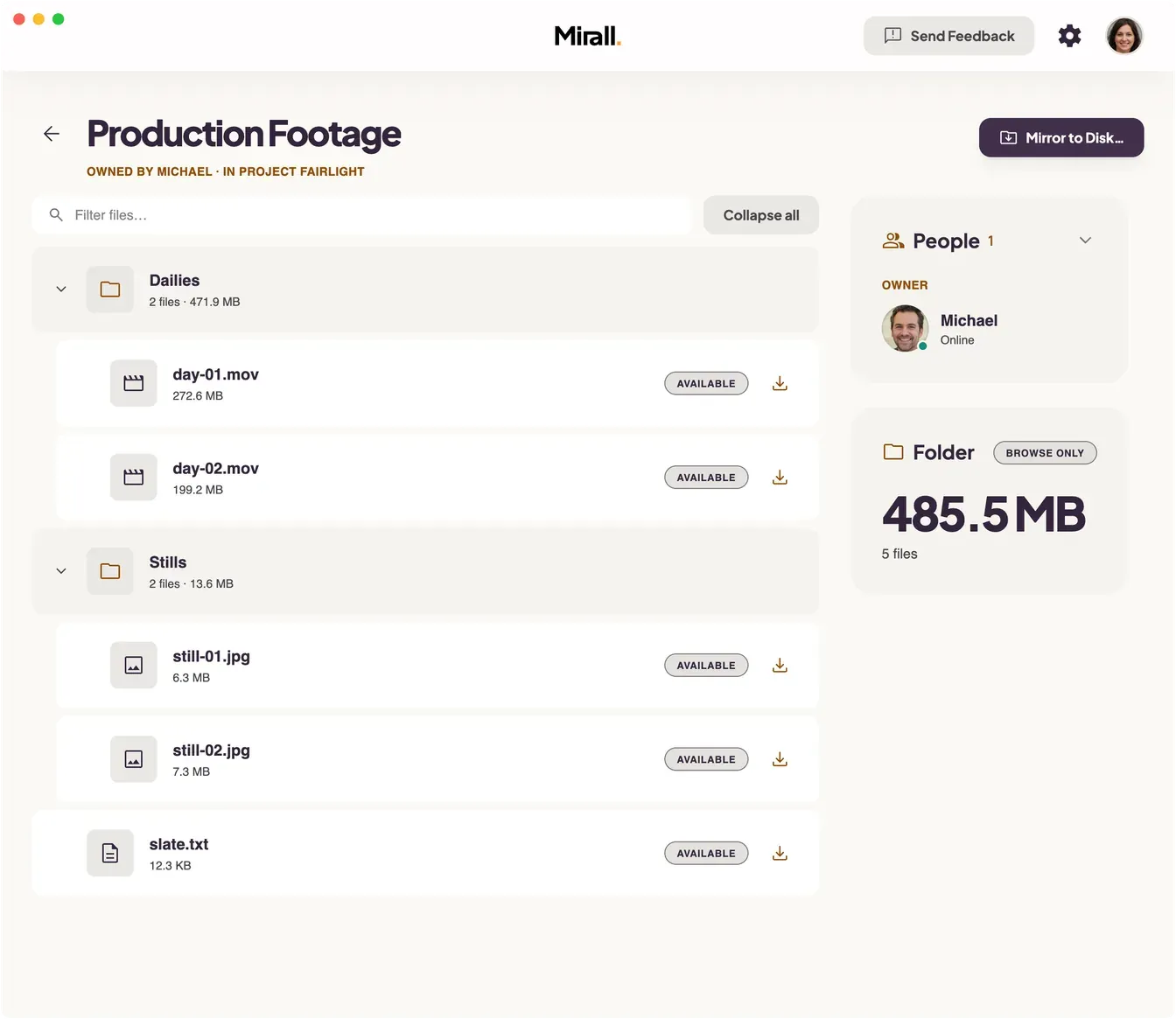
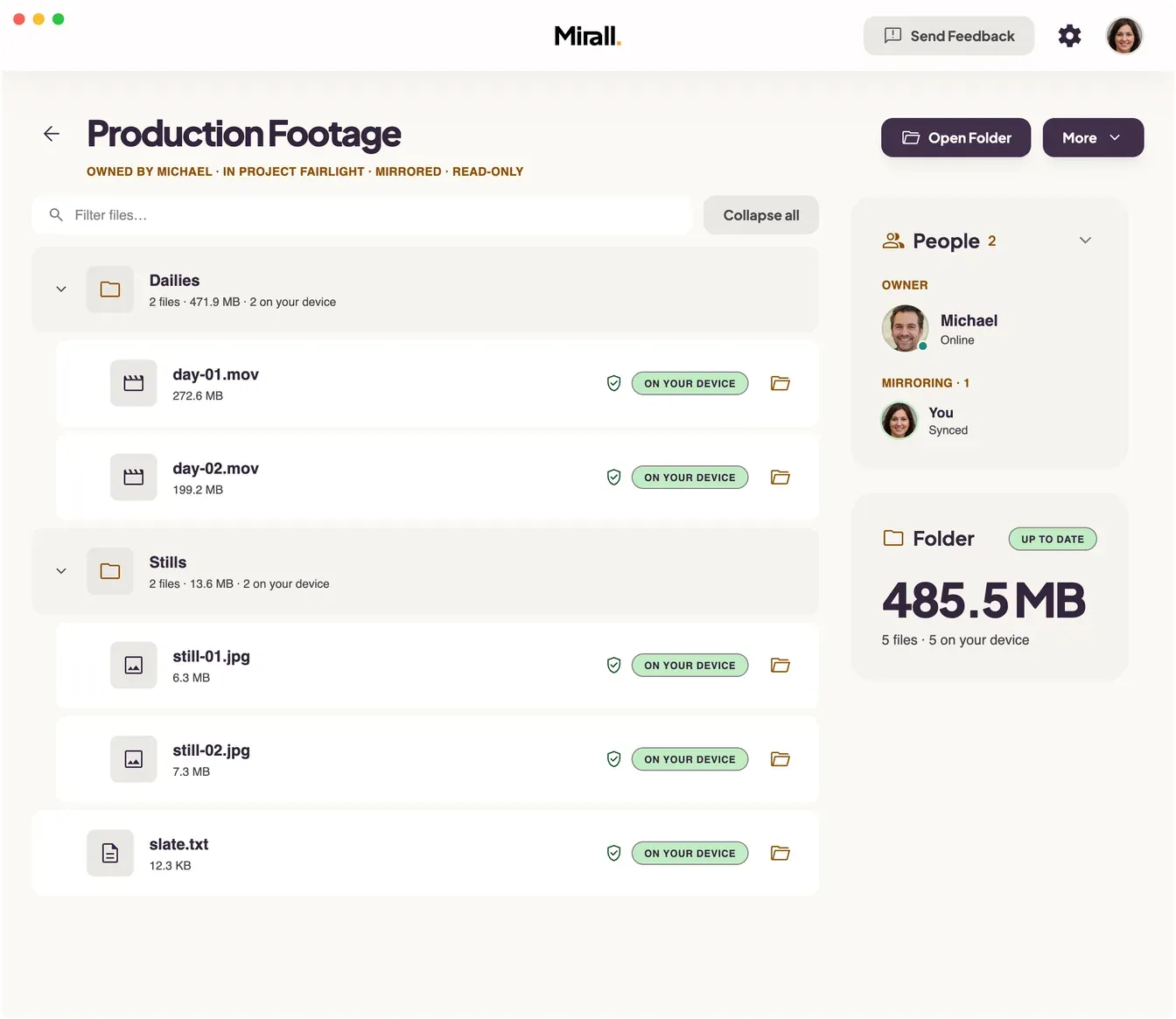
Open a folder another member shared to see what's inside without downloading everything. A folder you're only looking through is marked Browse.
Subfolders are rows you can open and close. Each one tells you what's inside before you open it: how many files it holds and their total size, how many are already on your device, how many are downloading right now, and how many subfolders it contains. A filter box sits above the list, with Expand all beside it — it opens the whole tree at once, and flips to Collapse all to fold it back up.
If the owner is still working through the folder, a band above the list says so — Michael is adding 6 files to this folder, with how much is left to read. Those files appear as the owner gets to them, so a folder can keep growing while you look at it.
Click Download on any individual file to save just that one, or use Mirror to Disk… to keep the whole folder synced instead.
Folders you leave open stay open as you move around the app. Restarting Mirall resets the tree to its default, with the top-level folders open.
A shared folder can hold thousands of files. The filter above the list narrows it as you type — on your screen only, and without touching what anyone else sees.
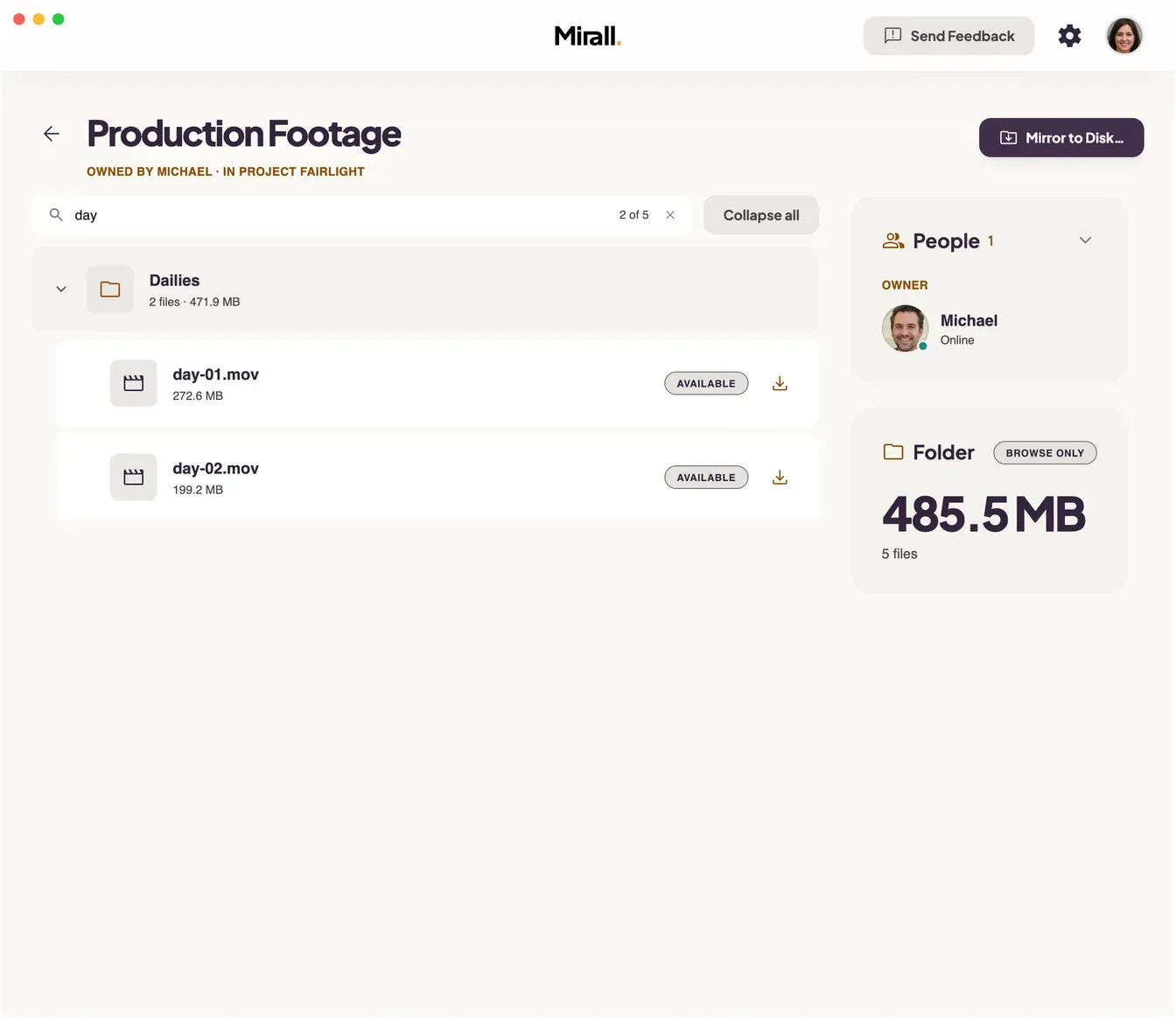
1Open the folder and click the Filter files… box above the file list.
2Type any part of a name. The list narrows as you type, and the count inside the box — 2 of 5 — says how many of the folder's files matched.
3Click the × at the end of the box to clear the filter and put the whole folder back.
Matching is on names, and capitals don't matter.
A subfolder whose own name matches keeps everything inside it. One that doesn't match survives only through what's inside it, so a match buried deep in the tree still reaches you.
Branches open on their own to show what matched, up to a couple of hundred files. Past that they stay folded, because a term matching nearly everything is only readable closed.
A subfolder row under a filter counts what's showing beneath it, not what the folder holds — so its file count and size always describe the rows you can see.
If nothing matches, the list says No files match and suggests fewer characters or clearing the filter. The People and Folder tiles beside it go on describing the whole folder either way.
The filter never leaves your screen: it shares nothing, unshares nothing, and members see the folder in full. Clearing it restores exactly the subfolders you had open before you started typing.
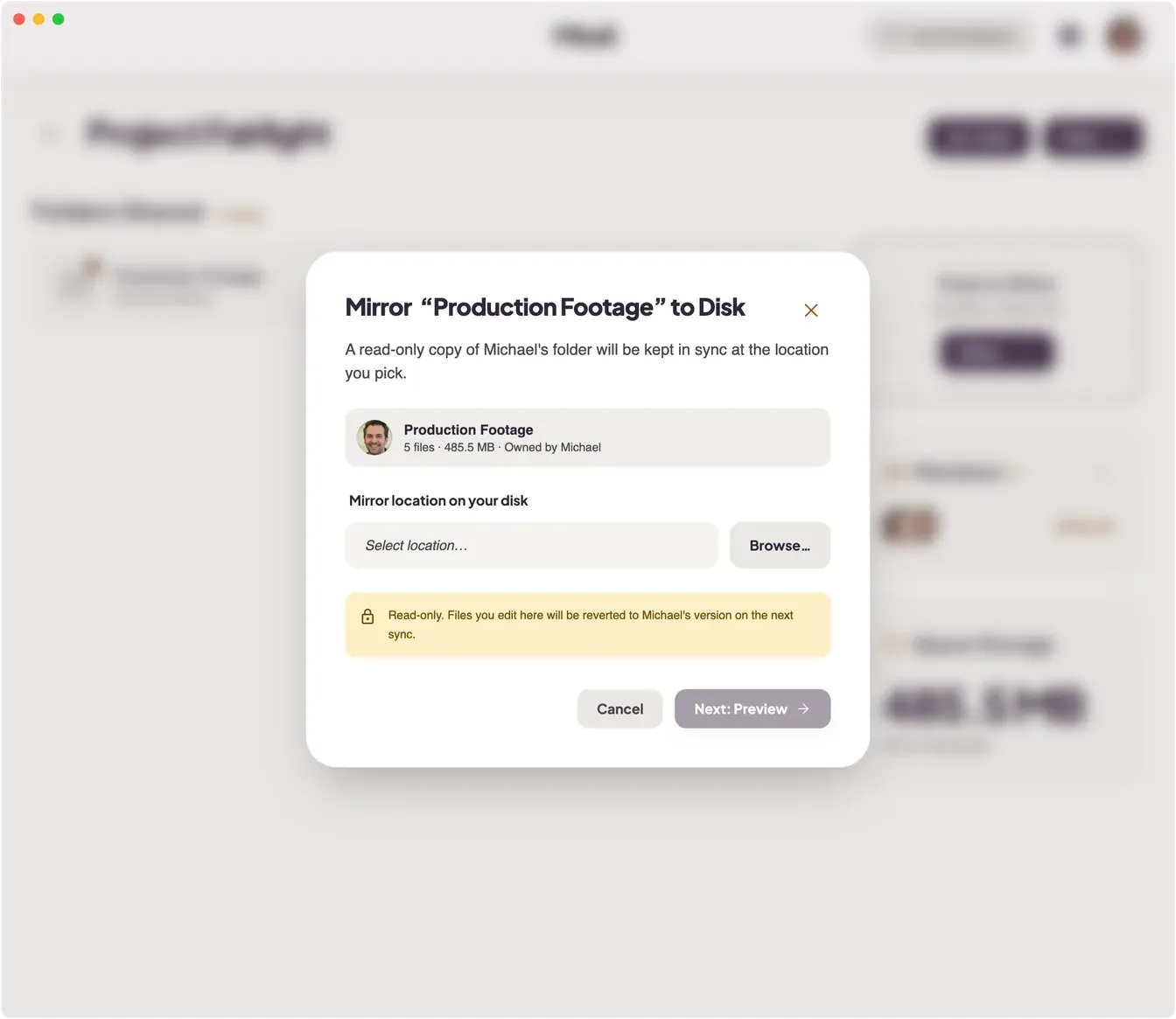
Keep a live, always-up-to-date copy of a shared folder in a folder on your own computer.
1Open the shared folder and choose Mirror to Disk….
2Pick a location on your computer with Browse…, then click Next: Preview to see what will be downloaded. The preview gives the folder's file count and size, what will land on your disk, and anything already at the destination.
3Click Start Mirroring. Mirall downloads the contents and keeps them in sync as the owner makes changes.
A mirror is read-only. If you edit a file inside the mirror, it reads Edited locally and the owner's version comes back at its own name within seconds — your edit is kept beside it, renamed to name (conflicted copy).ext. A file you delete from a mirror is fetched back the same way. To work on a file without leaving a second copy in the folder, copy it out of the mirror first.
A mirror can't be placed directly on a top-level personal folder such as Home, Desktop, Documents, or Downloads. If the mirror's folder already holds a file of your own with the same name as a shared one, your file is left alone and the mirrored copy lands under a different name.
If the owner's folder holds more than 5,000 files, the preview says so before you commit — This folder has 6,200 files, above the 5,000-file limit. You can still go ahead: mirroring works and every file syncs, but the file list only ever shows the first 5,000. The same line appears above the file list afterwards.
Pause, resume, move, or stop a mirror
A mirror's controls sit in the More menu — in the folder's own header, and on the folder's card in the space.
Pause syncing — stop syncing for now; the folder stays where it is and won't update until you resume. The pause is remembered across restarts, and the folder is badged Paused.
Resume syncing — start syncing again from wherever the owner's copy is now.
Edit Folder… — move the mirror to a different folder on your computer. This one is in the folder's own header menu.
Unmount Mirror — stop mirroring entirely and remove the mirrored copy. The folder reverts to Browse.
While the mirror is fetching, a band above the file list says what's left — Syncing 4 files from Michael · 460 MB to fetch — and carries the same Pause. The Folder tile reads Syncing until the last file lands, then Up to date.
When the owner goes offline, the mirror says so rather than pretending. A band above the file list reads Michael is offline — showing last synced files. Downloads will resume when they're back online, and a mirror that is demonstrably short of the owner's folder is badged Owner offline instead of Syncing. Nothing is lost: what is already on your disk stays yours, and the rest picks up when they return.
If a write fails — a full disk, no permission, or a destination that's gone — the mirror stops instead of pressing on. It's badged Problem, the band above the file list reads Syncing stopped with the reason and a Try again, and it picks up on its own once the cause is fixed.
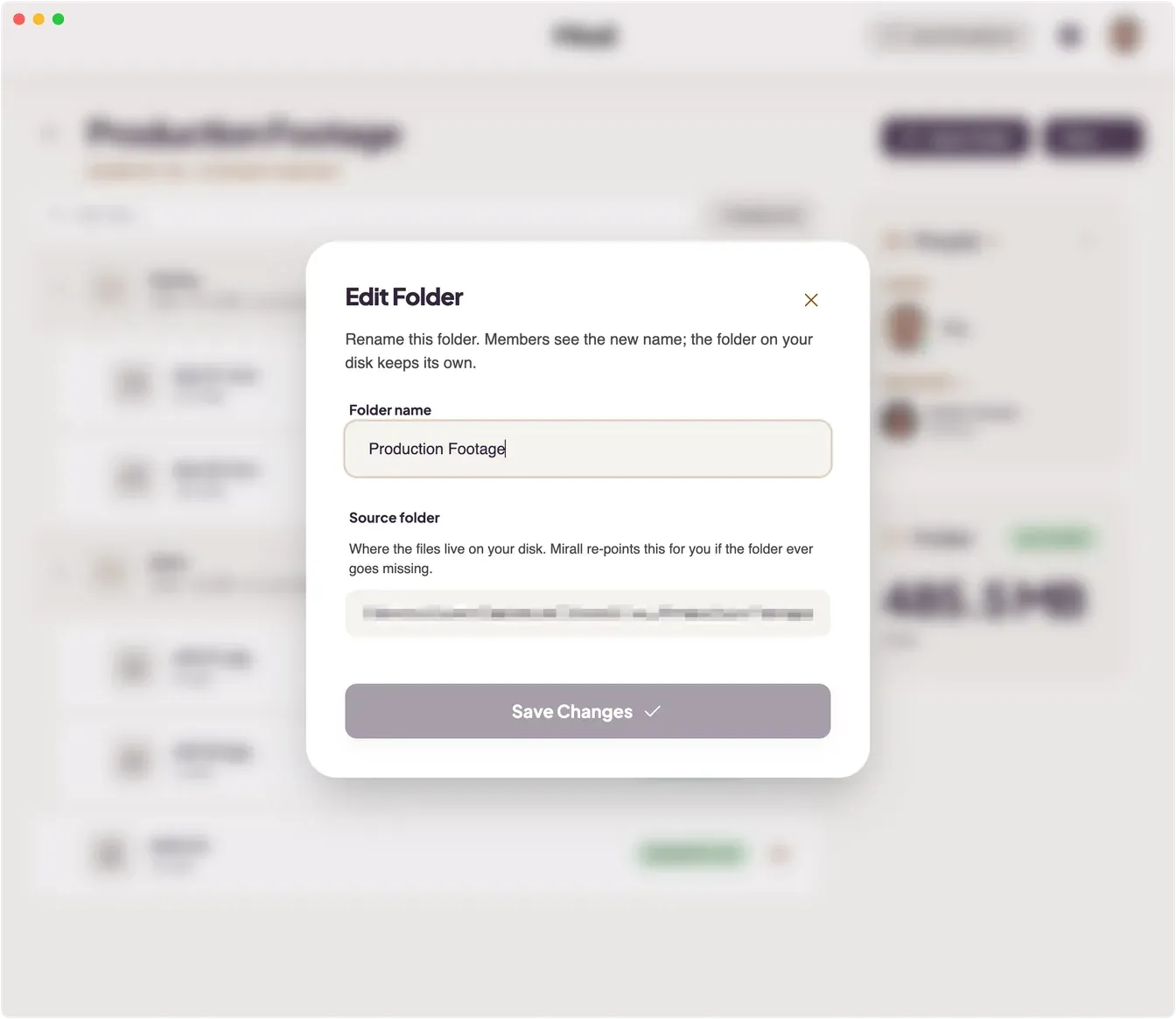
Edit Folder…, in a folder's More menu, changes the two things about it that aren't its contents: what it's called, and where it lives on your disk. Which of the two you can change depends on whether the folder is yours.
Rename a folder you share
1Open the folder and choose Edit Folder… from More.
2Type a new Folder name.
3Click Save Changes.
Everyone in the space sees the new name. The folder on your own disk is untouched — it keeps whatever you called it there — and so is every file members have already taken from it.
A name has to be unique within the space and can't contain slashes. Mirall refuses the save and says which of the two it was, rather than quietly changing what you typed.
The Source folder is shown here as well, but you can't re-point a healthy one. That control belongs to the folder that has gone missing: if you move or rename the source on disk, the folder is badged Folder is missing on disk and offers Locate folder… instead.
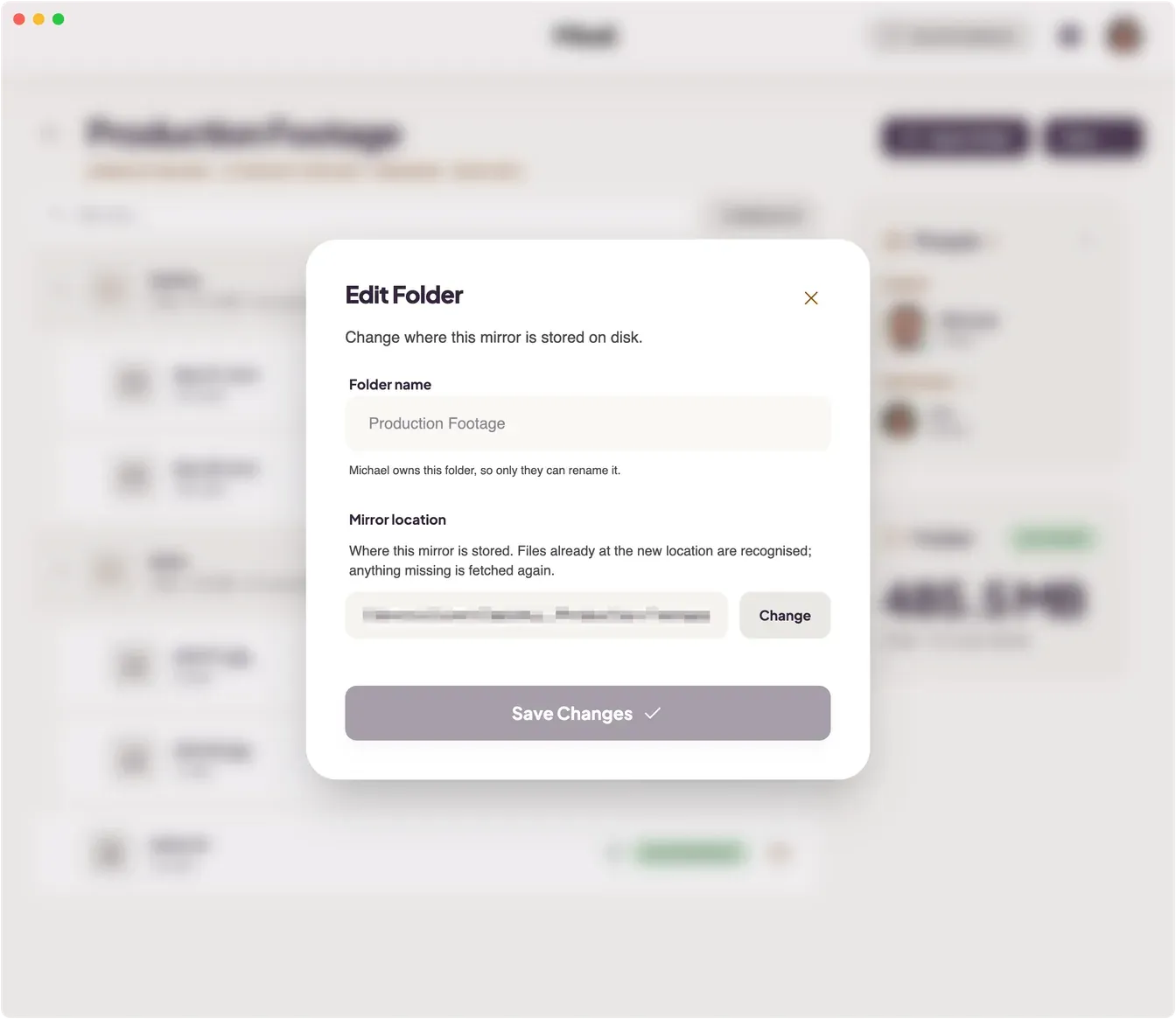
Move a folder you mirror
1Open the mirror and choose Edit Folder… from More.
2Click Change beside Mirror location and pick a new folder — another drive, say.
3Click Save Changes.
Files already sitting at the new location are recognised for what they are and aren't downloaded a second time; only what's missing is fetched. A mirror you had paused stays paused after the move.
Mirall moves where the mirror points, not the files already in it. What's in the old folder stays there as ordinary files — copy them across before you switch to save the download, or delete them afterwards.
The name belongs to whoever owns the folder, so on a mirror it's shown but not editable: Michael owns this folder, so only they can rename it.
Every folder names the people who have it. The People tile beside the file list shows the owner first, then everyone keeping a live copy — and it reads the same whether the folder is yours or someone else's.
Under Owner is the person the folder belongs to, with a dot for whether they're online. Under Mirroring · 3 is everyone mirroring it. One person shows by name with their state underneath; several stack into a row of faces with a summary beneath — 1 Syncing… · 2 Synced — and Show all opens the full list.
Each person is in one of a few states, drawn as a ring around their face and written out beside it: Synced (their copy matches the owner's), Syncing… (they're still catching up), Waiting for owner (still catching up, but the owner is away and nothing can move until they're back), or Paused (they've paused their mirror).
The list records who took the folder on, not who is connected right now. Someone who mirrored the folder and then went offline still appears, in the state they left in.
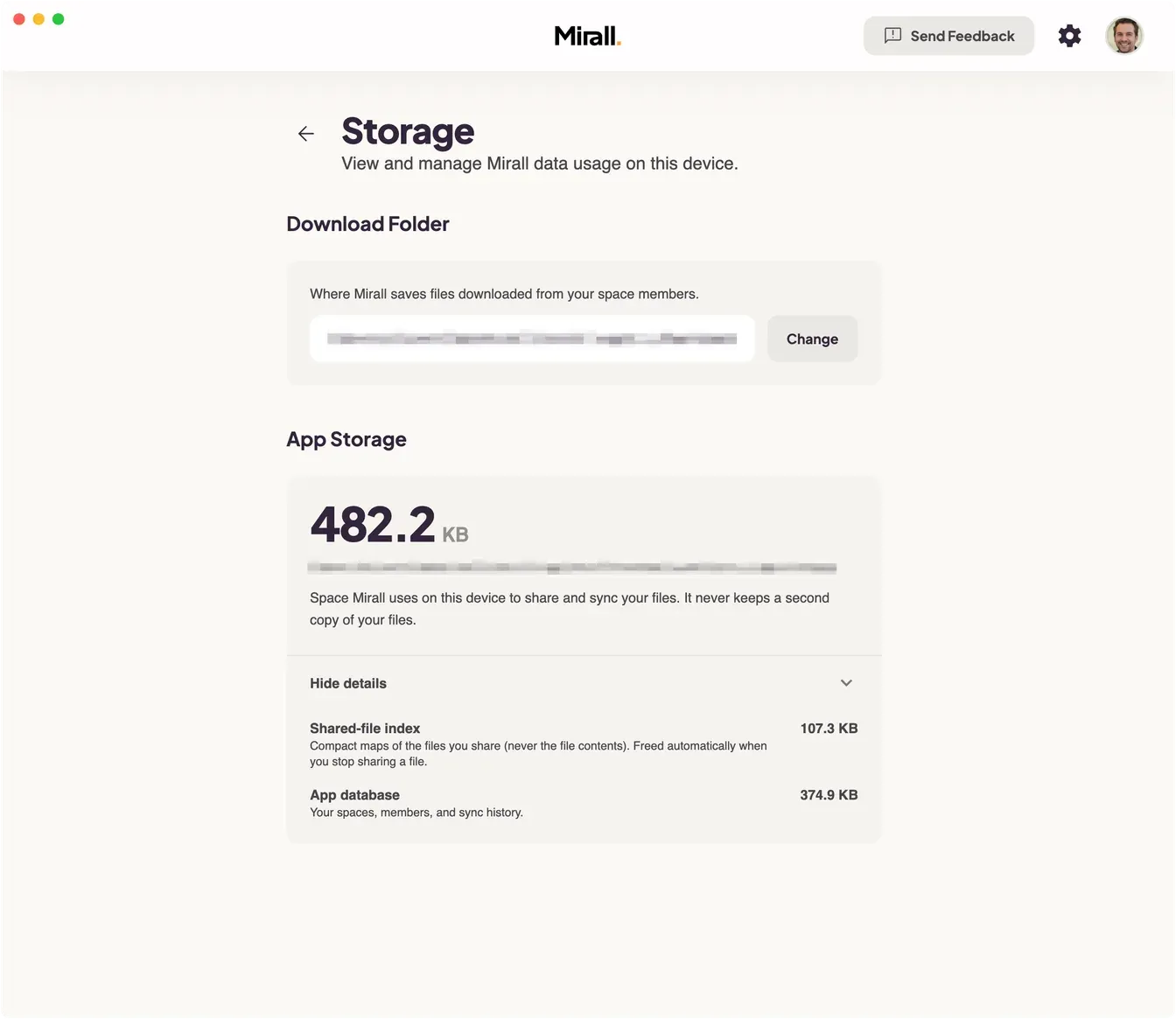
Open Settings → Storage. The Download Folder section at the top shows where downloads land; Change opens your OS picker. This is the folder every space uses unless it has one of its own, and the choice persists across restarts. It defaults to your OS Downloads folder.
Not every folder can be used. If the one you pick sits inside — or contains — a folder you share or mirror, Mirall refuses it, because anything downloaded there would be published to your peers. A folder that doesn't exist, or that Mirall can't write to, is refused too. Mirall never creates the folder for you.
Mirall keeps checking that the folder is still reachable. If it goes away — an ejected drive, a network share that dropped, a folder you deleted or renamed — a warning appears here and downloads stop rather than failing one by one.
Changing this folder doesn't move files you've already downloaded, and it leaves spaces that have set their own download folder alone.
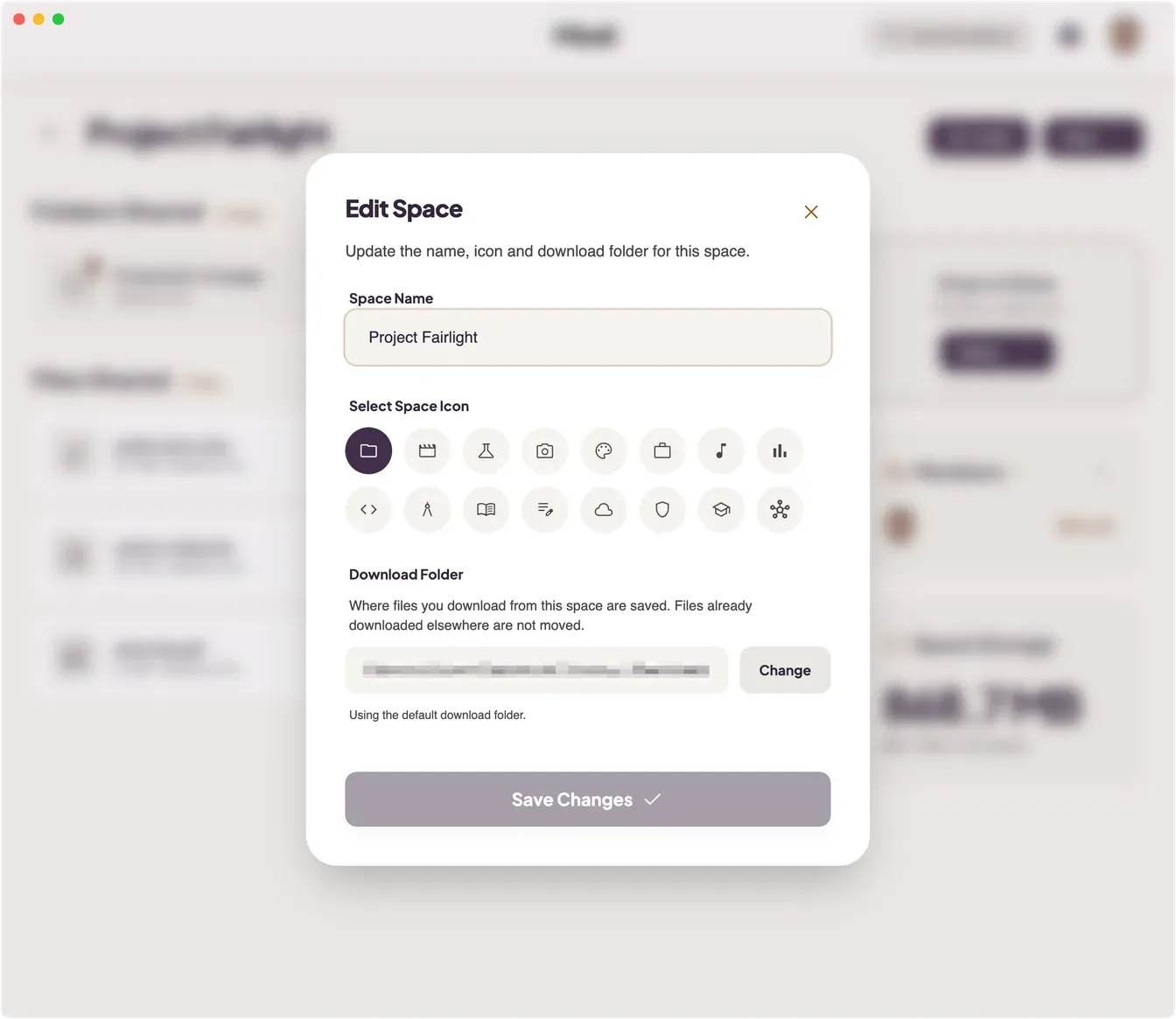
A space can save its downloads somewhere other than your default — a scratch disk for the project you're cutting, say, while everything else lands in Downloads.
1Open the space, click More in the header, and choose Edit Space.
2Under Download Folder, click Change and pick a folder.
3Click Save Changes. Closing the dialog without saving discards the change.
A space you leave alone keeps using the folder from Settings → Storage, and the dialog says so: Using the default download folder. Once a space has its own, a Use default folder button appears to put it back.
The same rule applies as for the default folder: a folder that sits inside — or contains — a folder you share or mirror is refused, since anything landing there would be published to your peers. Two spaces may happily share one folder.
Files you already downloaded are never moved. Ones now outside the space's folder simply read as Available again — point the space back at the old folder and they return to On your device without downloading anything twice. Let transfers finish or pause them before you switch.
Open Settings → Storage and look at App Storage. This is what Mirall itself occupies on your device — not your files. Because Mirall shares your files in place, it never keeps a second copy of them, so this figure stays small.
Show details breaks it into two parts:
Shared-file index — compact maps of the files you share, never their contents. Freed automatically when you stop sharing a file.
App database — your spaces, members, and sync history.
There's nothing here to run. Mirall compacts its own records on a schedule of its own, drops what a member left behind when they leave a space, and sweeps up what it no longer needs each time it starts.
An ejected external drive, a network share that dropped, or a folder that was deleted or renamed leaves Mirall with nowhere to put a download.
Rather than failing each download with a generic error, Mirall names the folder as the problem. A notification stays up for as long as the folder is unreachable and carries a Change folder action, and Settings → Storage shows the same warning under the download folder.
Reconnect the drive or remount the share and the warning clears on its own. If the folder is gone for good, use Change folder on the notification — or Change in Settings → Storage — and pick another one.
Downloads heading for a folder that isn't there stop retrying instead of hammering it, and Mirall never quietly recreates a folder you deleted. Once the folder is back, or you choose another one, they resume on their own while the sharer is online — or press Retry to start one straight away.
A space with its own download folder is checked the same way, so the warning can name a folder other than the one in Settings → Storage.
Click your avatar in the top-right to open the Profile page. The card at the top holds your display name and picture — change either, then click Save Changes, which appears once there's something to save. The update propagates to every space you're in. Your profile is only shared with the peers you connect with, and a picture must be under 16 MB.
Check how your identity is protected
Your identity in Mirall is a signing key held on your device. The Identity protection row under This device on your Profile page tells you how that key is being kept safe:
Your identity key is protected by the system keychain — the normal case. The key is wrapped using your operating system's secure keychain, so copying Mirall's data folder doesn't hand anyone your identity.
No system keychain is available — Mirall couldn't reach a keychain on this machine, so your identity key relies on full-disk encryption instead. Turning that on is worth doing here.
Identity-key protection is disabled — protection isn't active on this install.
This row is information, not a button — there's nothing to click and nothing to configure.
Mirall judges whether other people can actually reach this device, not just whether you have internet — so it can tell you your network is the problem instead of leaving you to guess.
Your avatar gains a soft pulsing ring when something is wrong — red when Mirall can't reach other people at all, amber when it can reach some but not others. No ring means you're connected and ready.
A problem also raises a notification that stays up until it clears. Its What can I do? action opens the Connection problem page. You land on that page directly if you open Mirall with no spaces yet and a connection that isn't working.
The Connection problem page
It opens with a verdict in plain language and what that means for you:
Your network is blocking Mirall — Mirall can find other people but can't connect to any of them. Invites you send won't arrive and spaces you join won't sync.
Limited connection — connections to many people will fail, though sharing still works with some. A mobile router or phone tethering is the usual cause.
You're offline — this device isn't connected to any network at all.
Can't reach the network — every route out of this device goes through a VPN, and nothing is answering through it.
Under What helps, in this order, Mirall lists numbered steps picked for the problem it actually found. Turning a VPN off comes first when the VPN is the likely culprit; when your network hands out a different port every time, it says so plainly, because no router setting fixes that one.
Check again re-runs the test on the spot instead of waiting for the next automatic one, with the time of the last check beside it. Network details opens the full diagnostics, and Connection history opens your activity log filtered to connection events. Continue to Spaces takes you on — you can still create and join spaces, and they start syncing once the connection works.
Things worth checking
A VPN. Many route or block the traffic Mirall needs. Try again with it off.
Your firewall. On Windows, open Windows Security → Firewall & network protection → Allow an app through firewall and check that Mirall is ticked for both Private and Public. The prompt shown on first launch is easy to dismiss by accident.
A company or campus network. Strict networks often block a direct connection between two devices outright.
A phone's shared connection. Tethering puts both devices behind the carrier's network, where a direct connection frequently cannot be made.
A relay, when nothing above helps. A relay forwards the connection for you on a network that will not carry a direct one — it is the answer to a strict corporate firewall or a mobile router, and the one thing that works when your network hands out a different port every time.
Settings → Network is a different screen — it holds your transfer limits and your relay, and shows no connection status. The diagnostics live on Network status, which you reach from Profile → This device → Connection. Each screen links to the other.
Some networks — office Wi-Fi, a hotel, a mobile carrier — stop two devices reaching each other, and a space simply never syncs. A relay forwards the connection for you, without being able to read what crosses it.
Mirall runs no relay of its own. A relay is something you run, or something someone you know runs and lets you into — so you either paste a key you were given, or an invite from whoever runs it.
Add one
1Open Settings → Network and find Relay. With nothing configured it reads No relay configured; click Add relay.
2Paste what you were given into Relay key or invite — either a bare relay key, or an invite that starts mirall://relay/. Click Continue.
3Check what came back. Mirall decodes it and shows the key with an Open relay or Private relay badge, so you can see which kind you are about to configure.
4Give it a name under Name (optional) — “Office relay”, say — then click Add relay.
Mirall tests the relay the moment you add it, so a key nobody answers on is caught there and then rather than weeks later. The row settles on Reachable or Unreachable.
There is one relay slot. Adding a second replaces the first — Replace in the row's menu opens the same dialog.
When the relay is used
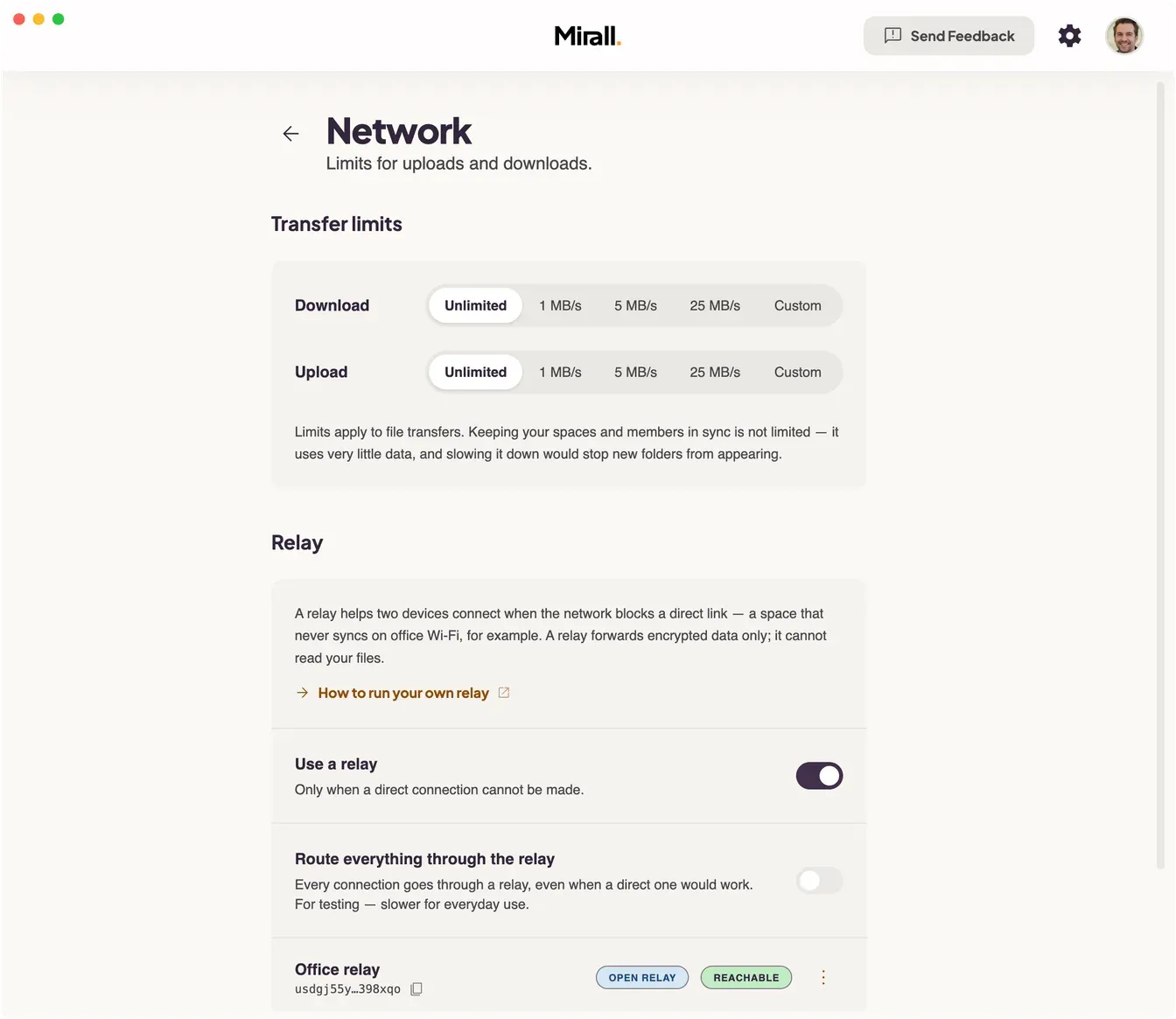
Use a relay — switched on when you add one. Mirall reaches for the relay only when a direct connection cannot be made, so on a network that already works it costs nothing.
Prefer the relay for every connection — asks for the relay on every connection, not only when a direct one fails. A direct path can still win, because Mirall keeps looking for one underneath. It is there to prove a relay works; leave it off for everyday use, because it is slower.
Turning Use a relay off leaves the relay configured but out of use. The row dims and is badged Disabled; Test is unavailable until you turn it back on, but you can still replace or remove it.
Turning yours off doesn't stop another member's relay. If someone with an open relay of their own is still connected to you through it, the section names them — that is their setting, and yours doesn't change it.
A change to your relay applies to new connections straight away, and Mirall moves the existing ones over itself when nothing is transferring. If a transfer is running, a notice in Settings → Network and on Network status says which connections are still on the old path, with a Reconnect now button to move them.
Test, replace, remove
The row's ⋮ menu holds Test, Replace and Remove. Test dials the relay and waits for it to answer as a relay — reaching the machine is not enough to pass.
An invite to a private relay is stored only on this device, and removing or replacing one erases it. Going back to that relay then needs a fresh invite from whoever runs it, which is why both acts ask you to confirm. An open relay's key can simply be pasted again, so Remove on one of those just removes it.
A private-relay invite takes effect only once Mirall reconnects: it changes the identity this device presents, and that is fixed while the app is running. Until then the section carries a notice with a Reconnect now button, and Test is unavailable, because the relay will not admit you yet.
What the operator can see
Your files stay encrypted end to end; the relay forwards them and cannot read them. What whoever runs it can see is that you are online and which keys you are connected to — never what you send. Use a relay run by someone you have reason to trust, or run your own.
A relay is a small server that Mirall reaches by its key. Running one yourself is how you know who operates the machine your blocked connections pass through.
What the machine needs
A real public IP address, and inbound UDP on the relay's port — a small VPS, or a home server behind a router you can port-forward.
The port forwarded straight through, if there is a router in front. 49737 outside has to reach 49737 on the relay. A remapped external port cannot work: reachability is decided by other nodes sending unsolicited packets to the port the relay is bound to.
Not behind CGNAT. Most mobile networks and many fibre ISPs put you there, and the relay itself then cannot be reached.
Not on the same network as the people using it. That is the network they are trying to get out of.
Bandwidth. Every relayed byte arrives and leaves again, so bandwidth, not CPU, is what a relay costs.
Peers find a relay by its key, never by its address. Nothing you hand out carries a host or a port, so you can move the relay or change its port and every key and invite already issued keeps working.
Pick one to run
Four ways, depending on the machine you have. Each name below opens its repository on GitHub, where the install instructions, the container image and the source live.
mirall-relay-startos — the least work by far, if you run a StartOS home server. Add the registry.zsapping.net registry, install Mirall Relay from the marketplace, and the package handles the container, the data volume and the operator pages. It derives the identity during install, so the public key exists before the relay has even started. You still have to forward UDP 49737.
mirall-relay-lite — one container, one key, nothing else. The key it prints on first boot is the entire configuration. Open to anyone holding it, with an allowlist of peer keys if you want to fence it to a fixed group. This is the one to reach for on a plain VPS.
mirall-relay — the full relay, for a team or a company. It adds invites you mint and revoke per person, an operator status page that tells you whether the world can actually reach you, per-connection and per-key caps, bans, and Prometheus metrics. Its container image is published too, and it is what the StartOS package builds on.
blind-relay-service — Holepunch's own, packaged for their fleet; on a machine that already runs Pear, pear blind-relay start does the same job. Both build on the same blind-relay and hyperdht libraries as the Mirall relays above, and neither offers an allowlist or a packaged container.
The shortest path, on a Linux host
mirall-relay-lite, from its published image. Nothing is built and no checkout is needed. If the host has no Docker yet, curl -fsSL https://get.docker.com | sh covers most Linux distributions and docs.docker.com/engine/install covers the rest.
The log prints the relay's public key on first boot — 52 characters, created for you, with no keygen step. --network host is the right choice on Linux; the named volume is what keeps that key the same across restarts.
Paste the key into Mirall on each device under Settings → Network → Relay → Add relay. Both Mirall relays also ship a docker-compose.yml doing exactly the same thing, and their READMEs carry every setting, how to pin a version or a digest, and how to back the identity up.
Check that it works
Test in Mirall, on the relay's row, is the check that matters: it dials the relay and waits for it to answer as a relay. Reachable means the thing is genuinely usable by the people you hand the key to.
A relay on a laptop will start, print a key, and look perfectly healthy while being useless — nothing behind a home router or a Docker Desktop VM can be reached by a peer. mirall-relay-lite has no reachability check of its own, so nothing in its log will tell you; Test will. mirall-relay does check, and says so on its status page at localhost:9200.
Open or private
An open relay admits anyone holding its key, and that key can be passed on. Mirall offers an open relay you have configured to the people you connect with, so someone with no relay of their own is carried by yours without configuring anything.
A private relay admits only the people you have minted an invite for, and Mirall never offers it to anyone else: a stranger who adopted the key would only be refused, and a refusal looks exactly like the relay being down. A private relay helps its own members reach each other, so enrol both ends of any pair that needs it.
Back up the relay's identity — the seed its public key is derived from. Lose it and the relay comes back as a stranger, while everyone who configured it is left pointing at a key nobody answers on.
Configure it on both sides when you can
One side supplying a relay is enough for a connection to be made, but the recovery is asymmetric: if the side without a relay is the one behind the restrictive network, the connection only comes back after the other side's direct attempt has timed out. Both sides configured means neither has to wait for that.
When a connection problem is hard to put into words, Mirall can write down what it sees about your network so you don't have to.
1Open Profile → This device → Connection to reach Network status.
2Under Troubleshooting, click Diagnostics. Leave Remove identifying details switched on — it is the recommended setting, and it is enough for us to work from.
3Click Preview what's included if you'd like to read the file first. It shows exactly what will be saved.
4Click Save diagnostics, then attach the file to your message.
The file describes how your network behaves — not what you share or who you share it with. With Remove identifying details on, your IP address, keys and space names are shortened or left out.
Include detailed logs is for a problem we can't reproduce. Switching it on turns detailed logging on straight away, so reproduce the problem first and save the file afterwards — otherwise the lines we need are the ones that were never recorded.
Turning Remove identifying details off saves the same file with nothing withheld, and the preview says so in as many words. Only do that if we've asked you to.
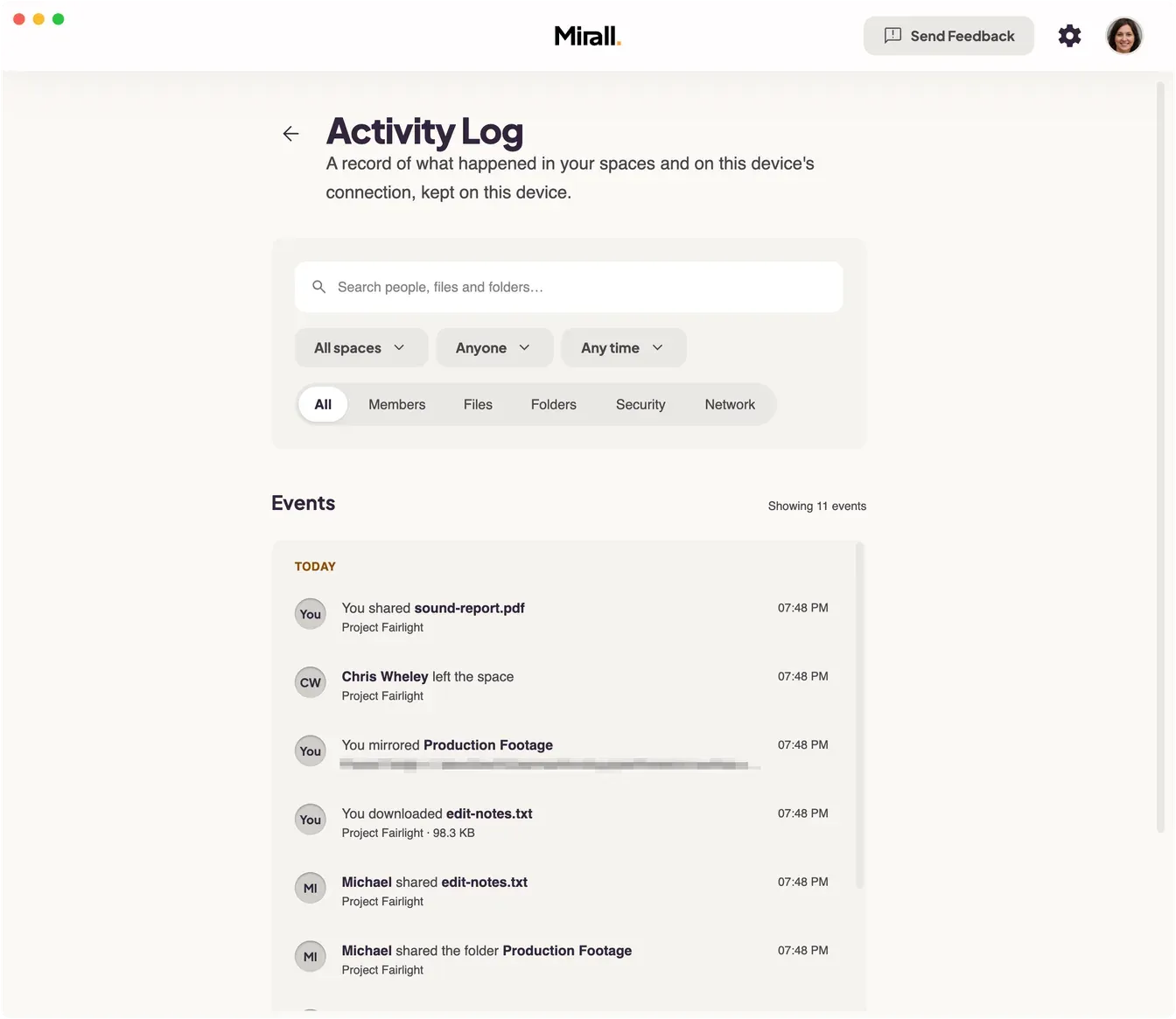
Mirall keeps a record on your device of who joined, left, or was approved, what was shared and downloaded, and when this device's connection went wrong.
Click your avatar to open Profile, then choose Activity Log under This device. The row itself tells you how many events are recorded.
Search across people, files and folders with the box at the top, and narrow the list with three menus — All spaces, Anyone, and Any time (last 7, 30, or 90 days). The All / Members / Files / Folders / Security / Network buttons filter by kind, and you can press more than one. Every filter you apply becomes a chip you can remove individually, or clear in one go with Clear all. Press ⌘F (Ctrl-F) to jump to the search box.
Events are grouped by day, newest first, with your own actions attributed to You. A refused request or a failed transfer carries a DENIED or FAILED badge. Twenty events load at a time — Load more fetches the next page.
Connection history
Network is the log's account of the stretches when nothing could happen. It records when this device went offline, when Mirall couldn't reach anyone, and when a connection was restored, along with members dropping out and coming back. A restored entry carries how long the gap lasted — Offline for 20m — and names the cause it settled on, such as Your VPN is the only route out or Your router changes ports.
Network also records each connection that is made through a relay — Sarah is connected through a relay — noting whether it went through your relay or through the one that person brought.
That's what turns an unexplained quiet afternoon into a window you can point at. Connection history on the Connection problem and Network status screens opens the log already filtered this way. If nothing is there, Mirall says so: No connection problems recorded.
Spaces you have left still appear here, and stay filterable, until their events age out.
Open Settings → Activity Log. Record activity turns recording on and off — it's on to begin with, and it covers connection problems as well as what happens in your spaces. Turning it off stops new events being written; it doesn't delete anything already recorded, and those events stay searchable and exportable.
Keep events for sets how long they're retained — 30 days, 90 days, or 365 days, with 90 the starting point. Anything older is deleted automatically.
Export as JSON saves every recorded event to a file called mirall-activity-log.json, including the stretches when this device was offline. Delete the log removes them all and asks you to confirm first; it can't be undone. Deleting hands back the disk space the events were using, and keeps your retention setting.
An export contains raw identifiers — public keys, file paths, and content hashes — rather than the readable sentences you see in the app. Treat the file as sensitive.
Every screen in Mirall is reachable without the mouse. The ones you go to most often have a chord of their own; the rest live in the command palette.
Press ⌘K (Ctrl-K on Windows and Linux) to open the command palette, then start typing. It searches your spaces by name and every action Mirall can run — including the screens with no shortcut of their own: Network status, each of the Settings pages, What's new, Send feedback, and the documentation.
⌘/ (Ctrl-/) shows the full list of shortcuts inside the app at any time.
⌘1 to ⌘9 jump straight to the first nine spaces in your list. On macOS that chord lives in the View → Go to Space menu, which is also where you can see which number belongs to which space.
Actions that act on a space — Invite, Edit Space, Add to Favorites, Manage storage — appear in the palette only while a space is open, and stay hidden while you're still waiting to be approved into one. Leaving is the exception: it stays available while you wait, because withdrawing the request is the thing you might want to do.
Shortcuts keep out of your way while you're typing: only ⌘K, ⌘,, ⌘/ and ⌘F stay live inside a text field.
Mirall lives in your menu bar (macOS) or system tray (Windows and Linux). Closing the window keeps the app running so peers stay connected, transfers keep going, and notifications still arrive — click the icon to bring the window back.
Settings → General lets you opt out: Show Mirall in the menu bar on macOS, Run in the background on Windows and Linux. Launch at login starts Mirall quietly with your computer.
To quit Mirall outright rather than close it to the tray, use File → Quit Mirall (Ctrl + Q) on Windows and Linux, or Mirall → Quit (Cmd + Q) on macOS.
Change the language
Mirall ships in five languages — English, German, French, Spanish, and Italian. Your OS locale is detected on first launch. Switch any time under Settings → Appearance → Language; your choice persists across restarts.
Change the theme and display size
Under Settings → Appearance, pick a Theme Mode — Light, System, or Dark (System follows your OS automatically). Set the Display Size to Compact, Cozy, Default, or Spacious, or step through any zoom level with Cmd/Ctrl +, −, and 0. Your choice persists across restarts.
On Windows and Linux, Auto-hide the menu bar tucks the menu bar away until you press Alt. Keyboard shortcuts keep working either way.
Configure notifications
Mirall surfaces incoming files and space activity through your operating system's notification center. Open Settings → Notifications. Three switches cover the basics: Show desktop notifications (the master switch), Play sound, and Mute when Mirall is focused, which skips alerts while the window is in front.
Under Events, five per-event toggles let you opt in or out individually:
Someone comes online — a member of one of your spaces appears online.
Someone goes offline — a member of one of your spaces disconnects.
Download finished — a file you're receiving has finished downloading.
Download failed — a download could not be completed.
Download paused — a download paused because the sender went offline or the transfer was interrupted.
A burst of downloads finishing, failing or pausing in one space arrives as a single notification that counts the files — 3 files — Disk full — rather than one per file.
Requests to join a space always surface in the app itself, as a banner on the space and a notice you can act on. They don't depend on these settings.
Limit how much bandwidth Mirall uses
Cap how fast Mirall transfers files, so a big download doesn't take the whole line with it.
Open Settings → Network. Under Transfer limits there's a row for Download and one for Upload, each offering Unlimited, 1 MB/s, 5 MB/s, 25 MB/s, or Custom. Both start out unlimited.
Custom reveals a box where you type a figure in kilobytes per second — a plain number, no units to pick. Enter 0 for no limit. Anything below 32 KB/s is rounded up to it, and Mirall tells you so.
A change takes hold within a moment, including on transfers already running. There's nothing to restart and nothing to reconnect. If Mirall can't apply it straight away, it keeps the new limit and says Saved. The new limit takes effect after Mirall restarts.
A limit is a total, not a figure per transfer. Two downloads running under a 5 MB/s cap get roughly half each rather than 5 MB/s apiece, and serving several people at once splits one upload cap between them.
Install Mirall on Windows when the package won't open
Double-clicking the .msix hands it to App Installer, a Windows component that can refuse a package the rest of Windows installs without complaint. When that happens, install it directly instead.
Use a normal PowerShell window. Do not run it as administrator — the command installs for the current user, so an elevated window puts Mirall on the administrator account and it never appears in your Start menu.
1Download the installer. Get Mirall.msix from the download page and note where your browser saved it — normally your Downloads folder.
2Open PowerShell. Press Windows, type PowerShell, and open it. A normal window — not "Run as administrator".
3Install the package. Run Add-AppxPackage, giving it the path to the file. Adjust the path if you saved it somewhere other than Downloads.
Mirall appears in the Start menu when the command finishes. On success it prints nothing at all.
Why this happens
App Installer can fail while the part of Windows that actually installs packages is perfectly healthy. It updates through the Microsoft Store, so it goes stale on machines where Store or Windows Update traffic is blocked — and it deliberately turns down packages that declare certain restricted capabilities. Mirall declares one so it can keep your data at a real %APPDATA% path instead of inside a sandbox. The command above bypasses App Installer, so neither applies.
Machines with Windows updates deliberately frozen — by a blocking utility, on an LTSC image, air-gapped, or under a locked-down company policy — are the most likely to run into this.
If the command also fails
Unlike App Installer, it prints a real error code. These are the ones worth acting on:
Code
What it means
What to do
0x800B0109
The signing certificate chain ends in a root this machine doesn't trust
Import the Certum Trusted Network CA 2 root into Local Computer → Trusted Root Certification Authorities. Windows normally fetches it on demand, which fails on a machine that can't reach Windows Update.
0x80070005
Access denied
You're in an elevated PowerShell window. Close it and use a normal one.
Still stuck? install-windows.ps1 in the Mirall repository collects what we need to diagnose it — Windows build, App Installer version, service states, the certificate chain as your machine sees it, and the last deployment events — and writes it to a text file. Download it, read it, then run it with -Diagnose and attach the file to your report.
You don't have to do anything — Mirall checks for new versions on its own and downloads them in the background. A staged update is applied the next time you quit and reopen Mirall, on your schedule.
When an update is waiting, a banner appears at the top of the window (you can dismiss it), and the pending version is also shown under App on your Profile page so you can always check what's coming.