Tutorials
Guided lessons for newcomers. Follow them top to bottom — each one takes you all the way through a real task so you learn Mirall by doing.
Send your first files
In a few minutes you'll install Mirall, create a space, invite someone, approve them, and watch a file travel directly from your device to theirs. You only need a second person with Mirall installed to receive — or a second computer of your own.
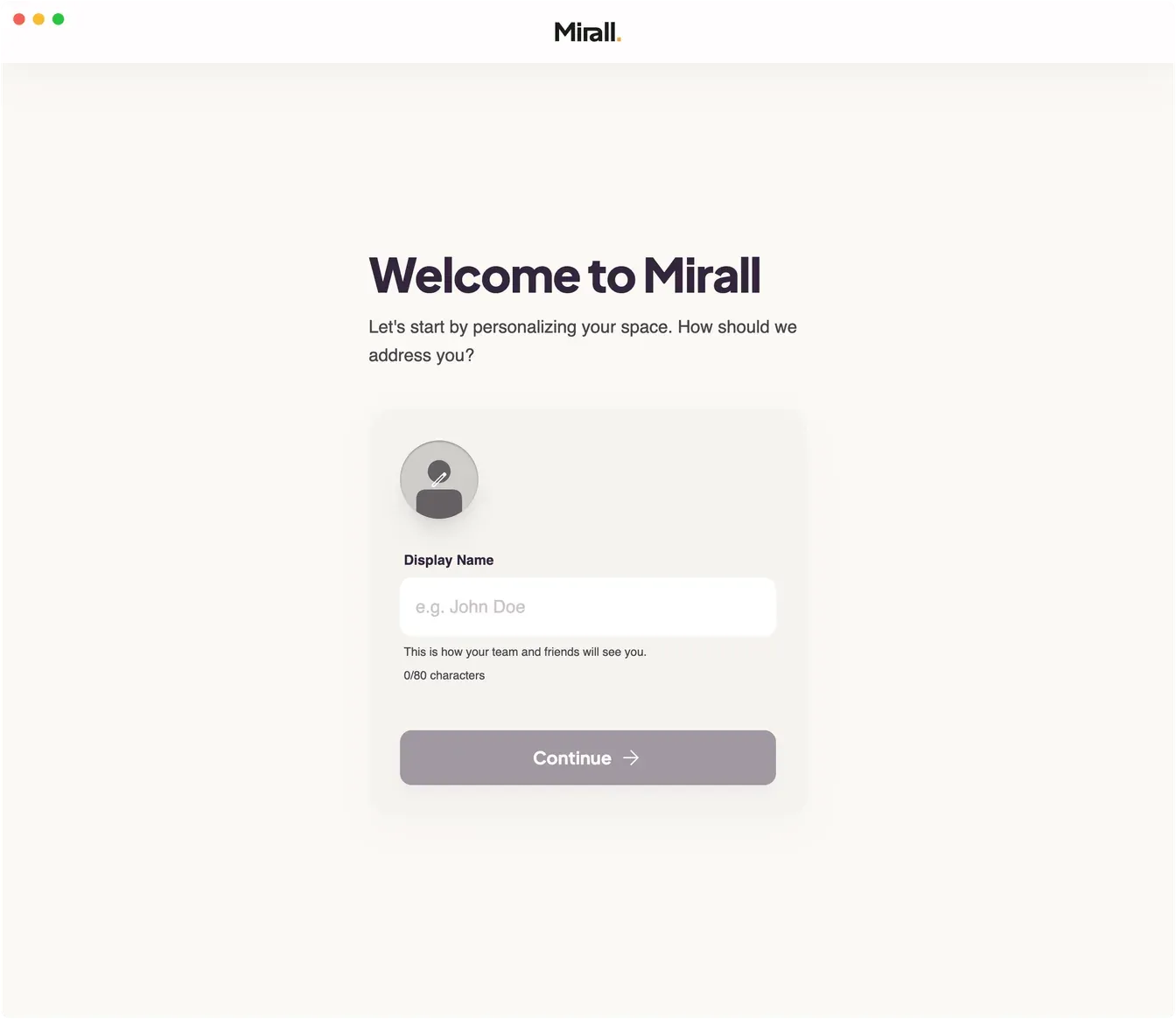
- 1Install and open Mirall. Download Mirall for your platform from the download page and open it. The first time it launches, Mirall asks for a display name and an optional avatar — that's how other members will see you. Your OS language is detected automatically.
- 2Create a space. On the Shared Spaces screen, click Create Space, give it a name, pick an icon, and click Initialize Space. Mirall confirms with Space Created — click Done. A space is a private group where you and the people you approve share files.
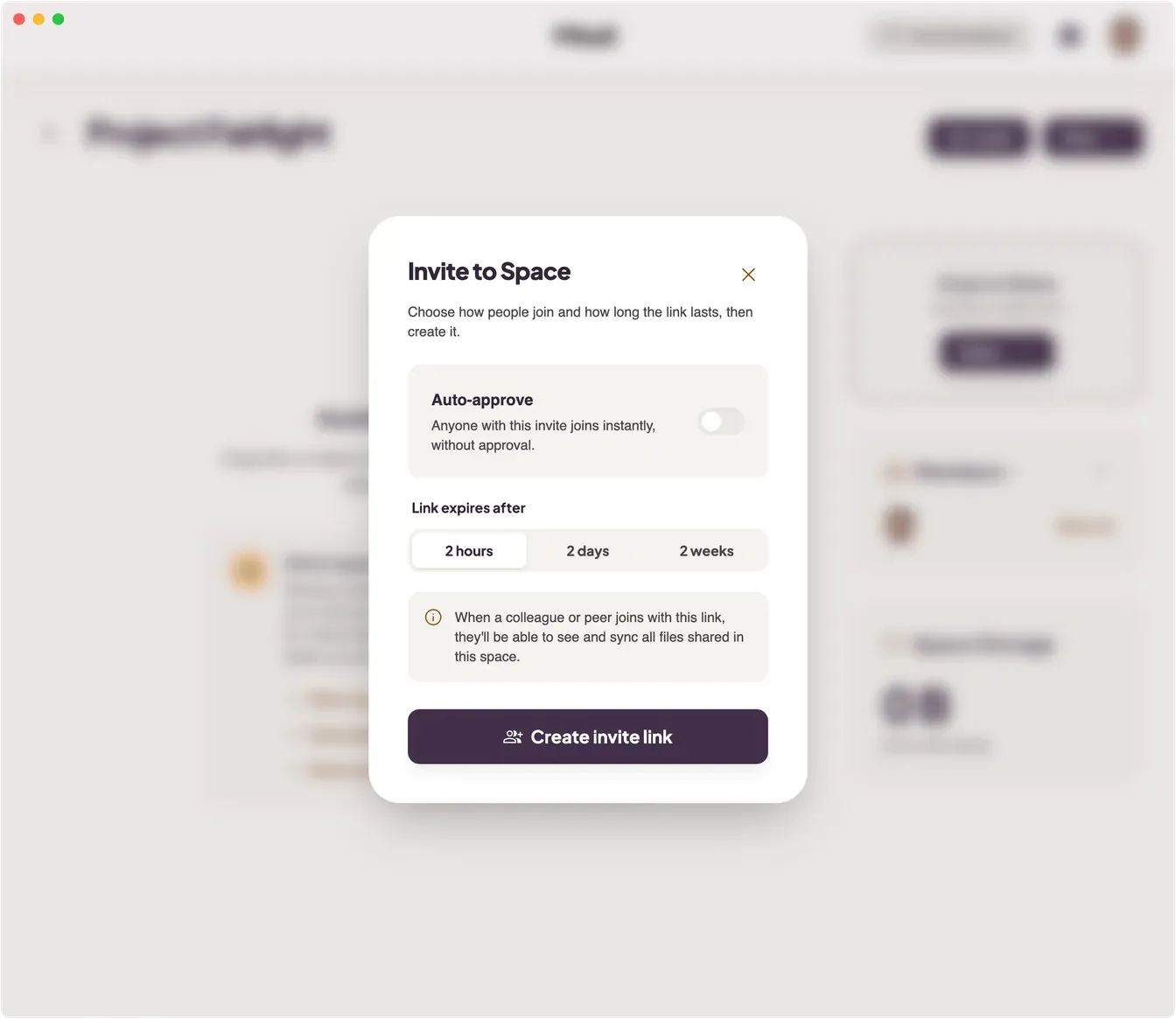
- 3Create an invite link. Open the space and click Invite. Choose whether to auto-approve anyone who uses the link, pick how long it stays valid — 2 hours, 2 days, or 2 weeks — and click Create invite link. Copy the link and send it however you like: chat, email, anything.
- 4Let them join. The other person clicks Join Space, pastes the link, and confirms. Unless you turned auto-approve on, they now wait: their screen reads Waiting to be let into the space, and they can't see anything shared in the space yet.
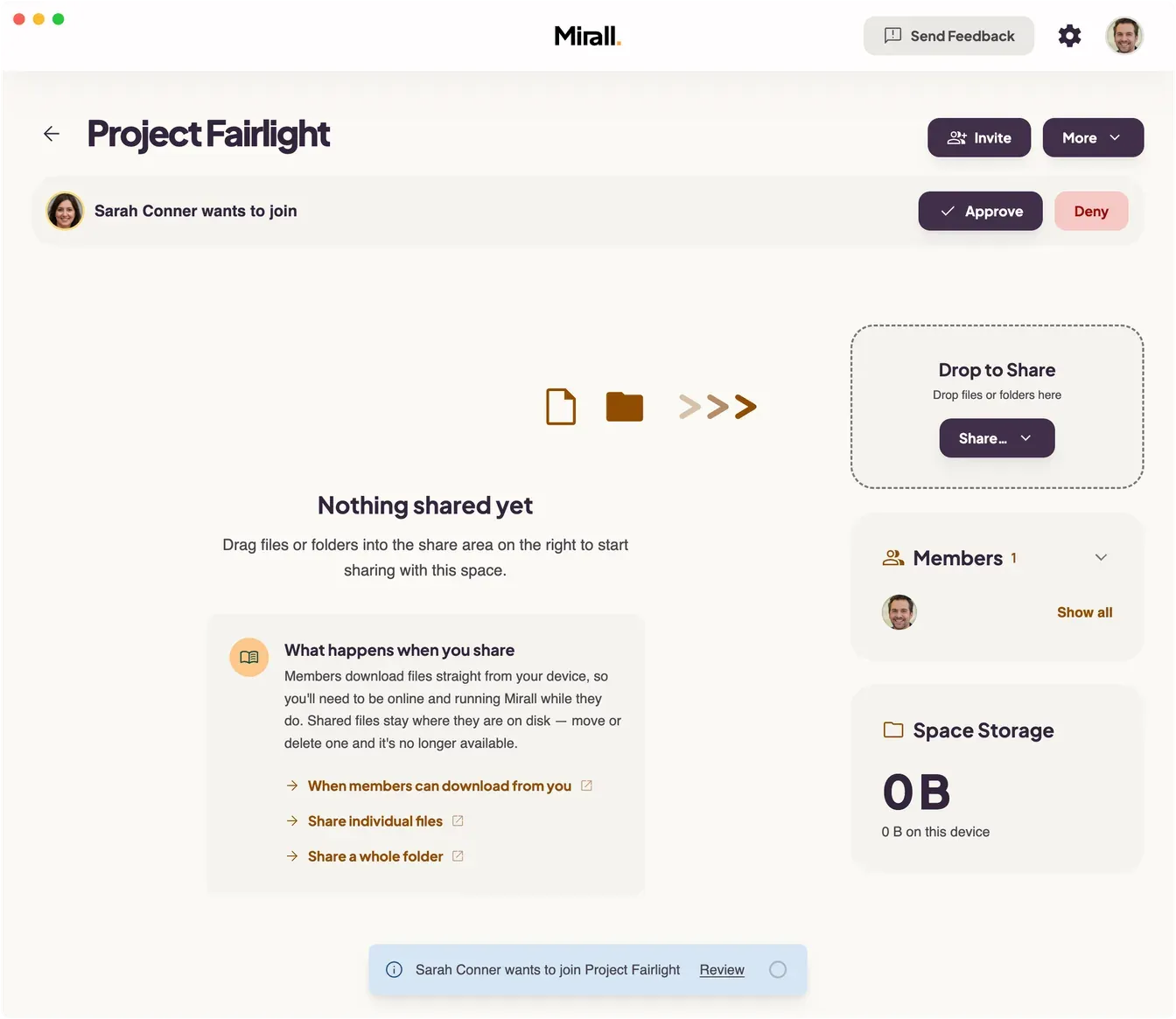
- 5Approve them. Back in your space, a banner appears reading “<name> wants to join”. Click Approve. They're admitted, the space contents open up to them, and you both appear in each other's Members panel.
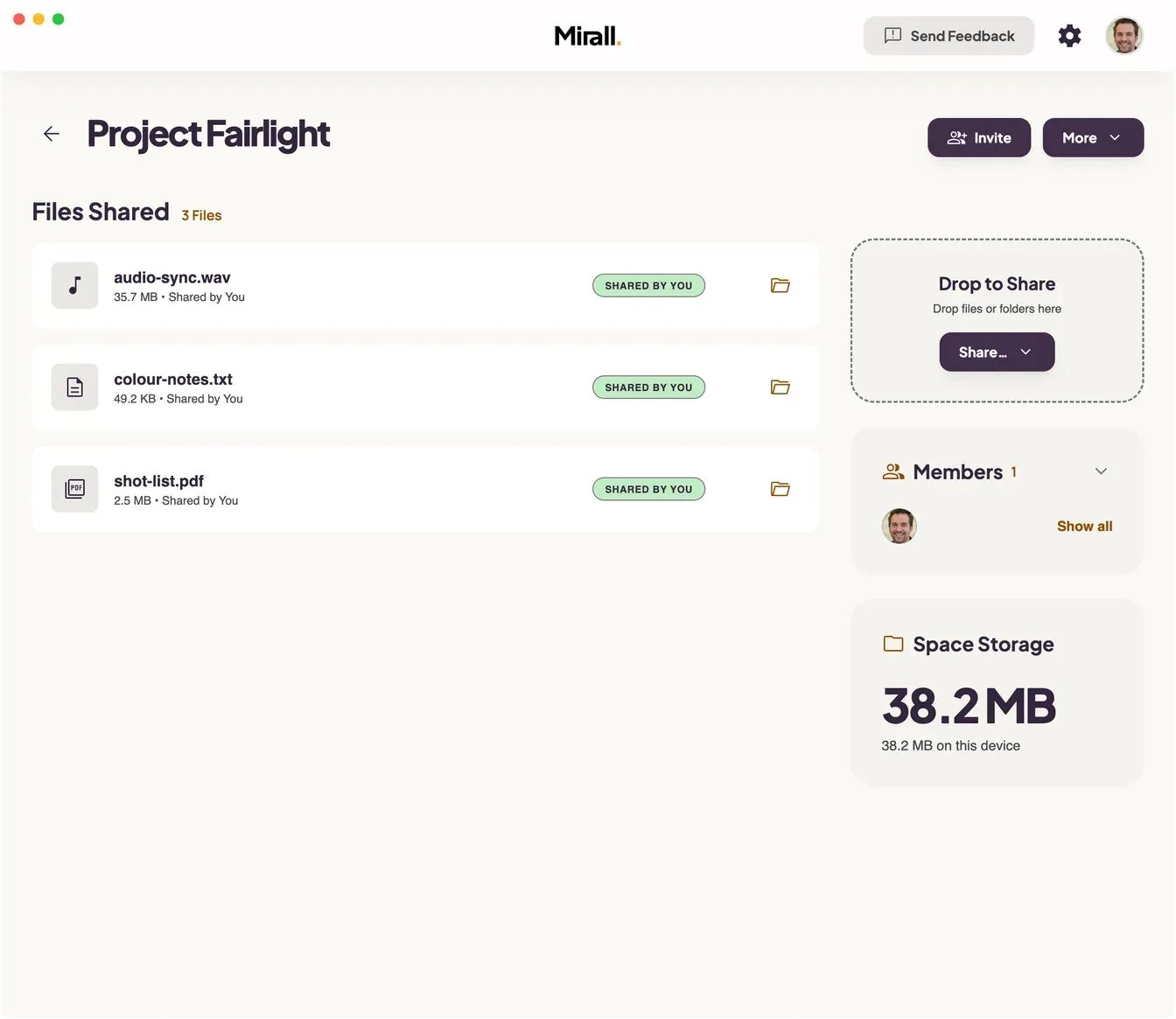
- 6Share a file. Drag a file onto the Drop to Share zone in the sidebar, or use Share… to pick one. Mirall offers it to the space straight from the original on your disk — it never makes a second copy.
- 7Download on the other side. On the other person's Mirall, the file appears with a download button. They click it and the file transfers directly from your device to theirs, with live progress, speed, and time remaining. When it lands, a green shield confirms the contents match your original exactly. No server stored a copy along the way.
Nothing downloads automatically. Members always see what's available and choose what to pull onto their own device.
Share a folder and keep it in sync
Instead of picking files one by one, you can share a whole folder into a space and keep it in sync. This lesson walks you through sharing a folder, then having another member mirror it to their own disk.
- 1Open a space. Open an existing space, or create one as in the first tutorial. Anything you share lives inside a space.
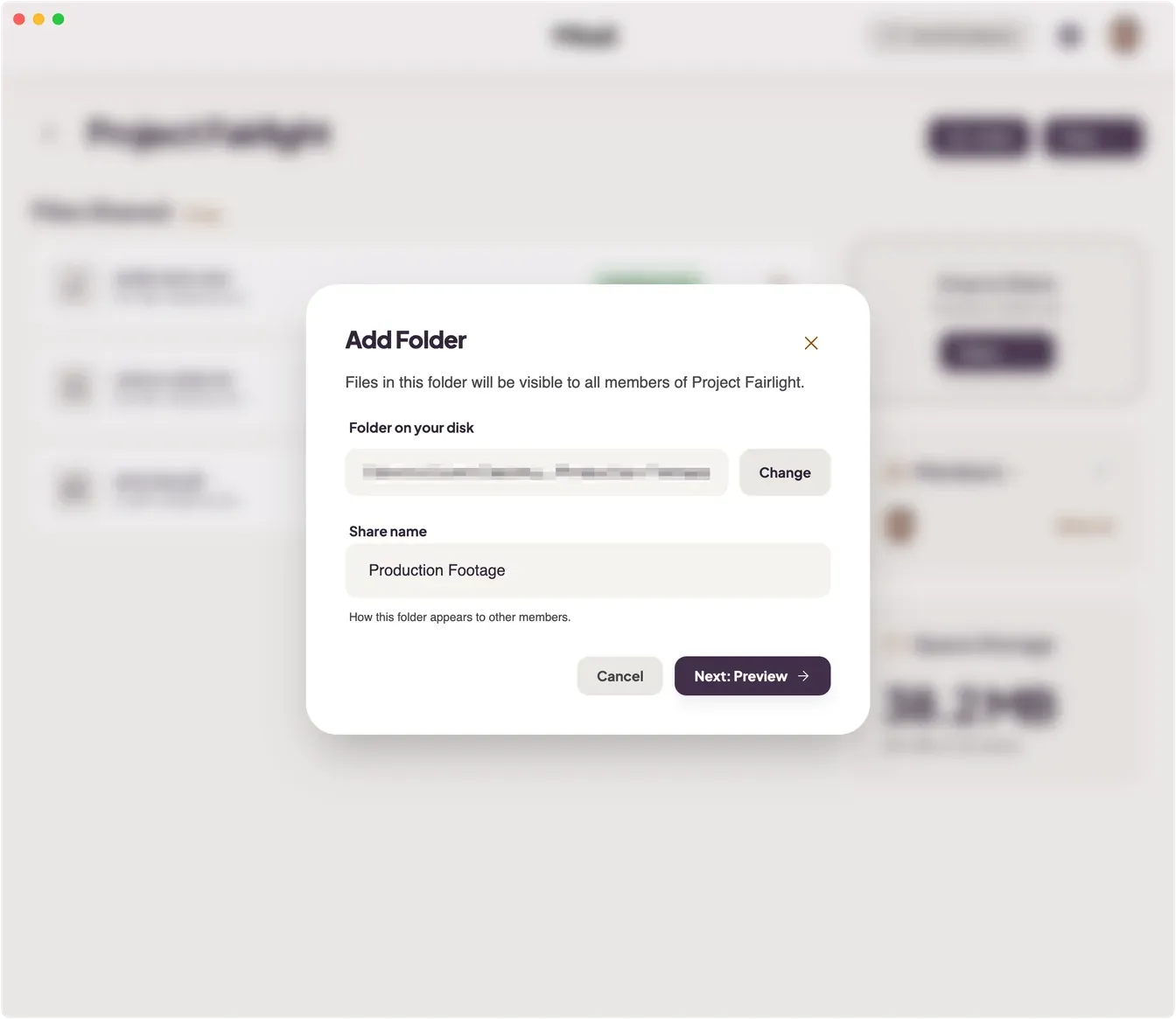
- 2Add a folder. Open Add Folder (from Share… in the sidebar, the File menu, or
Cmd/Ctrl + Shift + U). Pick a folder on your computer and give it a share name — that's how the folder appears to other members. Subfolders are included automatically. - 3Check the preview. Click Next: Preview. Mirall scans the folder in the background and shows you what it's about to share — how many files and how large. Click Add Folder to confirm.
- 4Watch it publish. Mirall starts offering the folder's files to the space, serving them straight from the originals on your disk. From now on, when you add, edit, or remove files in that folder on your computer, the change syncs to the space on its own.
- 5Have a member mirror it. Another member opens the shared folder. They can browse it — open subfolders and download individual files — or use Mirror to Disk… to keep a live, always-up-to-date copy in a folder of their choosing.
- 6Watch it stay in sync. Change a file in your shared folder. On the mirroring member's computer, the mirror updates to match. The mirror is read-only: if they edit a mirrored file, it's restored to your version within seconds, and their edit is kept beside it as a conflicted copy.
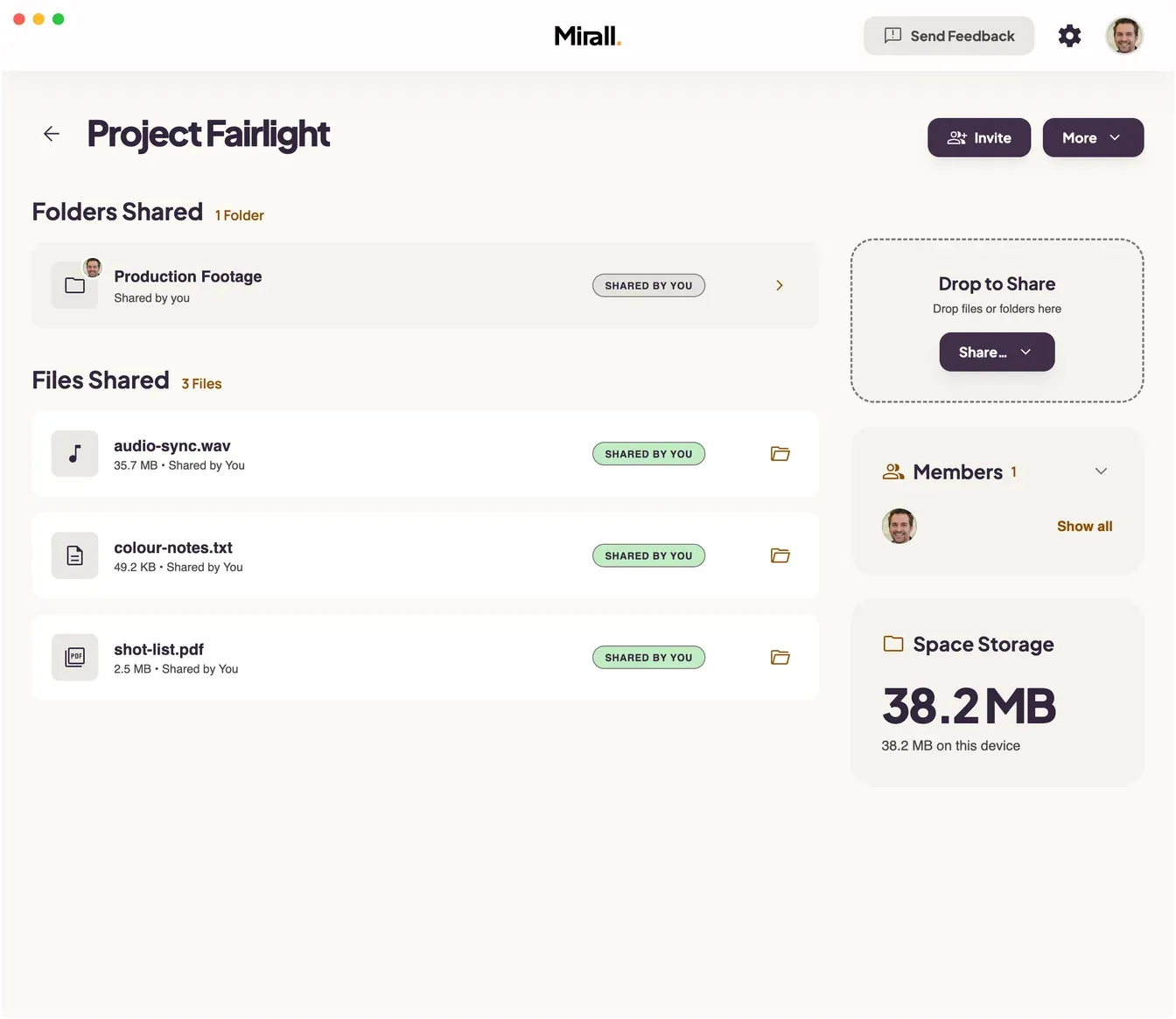
Sharing a folder never doubles its disk usage — Mirall serves the files in place, from the originals.