Reference
Complete, lookup-able facts about Mirall — statuses, types, shortcuts, settings, and menus.
File statuses
What each label on a file means. Colour carries meaning: green when a file is on your device, blue while it's moving, yellow when it needs your attention, red for an error, and grey when it's offered but not yet yours.
| Status | Colour | Meaning |
|---|---|---|
| Shared by you | Green | A file you added to the space. It stays where it is on your disk and is offered to other members. |
| On your device | Green | A file you downloaded from another member. It's yours to keep and works offline. |
| Downloading | Blue | A transfer is in progress, showing progress, speed, and time remaining. |
| Verifying… | Blue | The download finished and Mirall is checking the contents match the owner's original. |
| Preparing… | Blue | The owner is still indexing this file. You can watch their progress while you wait. |
| Adding | Blue | A file you just added is being indexed so other members can fetch it. |
| Paused | Yellow | A download stopped — because you paused it, or because it was interrupted. Resume to continue. |
| Edited locally | Yellow | The copy on your device changed after it was downloaded and verified. In a mirror, the owner's version is restored and your edit kept as a conflicted copy. |
| Failed | Red | A transfer errored out, and the row says why. Disk full, Permission denied and Download folder unavailable clear on their own once you fix the cause; otherwise Retry to try again, or dismiss it. |
| Available | Grey | The member who shared this file is online, so you can pull it. Click download. |
| Owner offline | Grey | The member who shared this file is offline. The download resumes on its own once they're back, and a partly downloaded file keeps Discard Partial. |
| Not available | Grey | The file can't be obtained right now. |
The verified shield
A green shield next to a finished download means Mirall checked the file's contents against the owner's original and they match exactly. It appears only on a completed download, never on a file you shared yourself, and it comes off once the copy on your device changes — the file then reads Edited locally.
Folder & share badges
The badge on a shared folder tells you your relationship to it.
| Badge | Meaning |
|---|---|
| Shared by you | A folder on your computer that you share into the space. Your local changes sync to the space automatically. |
| Browse | A folder another member shares that you're looking through. Download individual files, or mirror the whole folder. |
| Mirrored | A folder another member shares that you keep as a live, read-only copy on your disk. It stays in sync as the owner changes it. |
| Paused | Work on this folder is held. Either a mirror whose syncing you've paused, or a folder you share whose adding you've paused. Nothing moves until you resume it. |
| Folder is missing on disk | A folder you share whose source folder has been moved or deleted. Point Mirall at its new location to reconnect it. |
| Problem | Mirall can't get past something on this folder — no permission to read it, a full disk, or a destination that's gone. Open the folder for the reason and a Try again. |
The folder screen
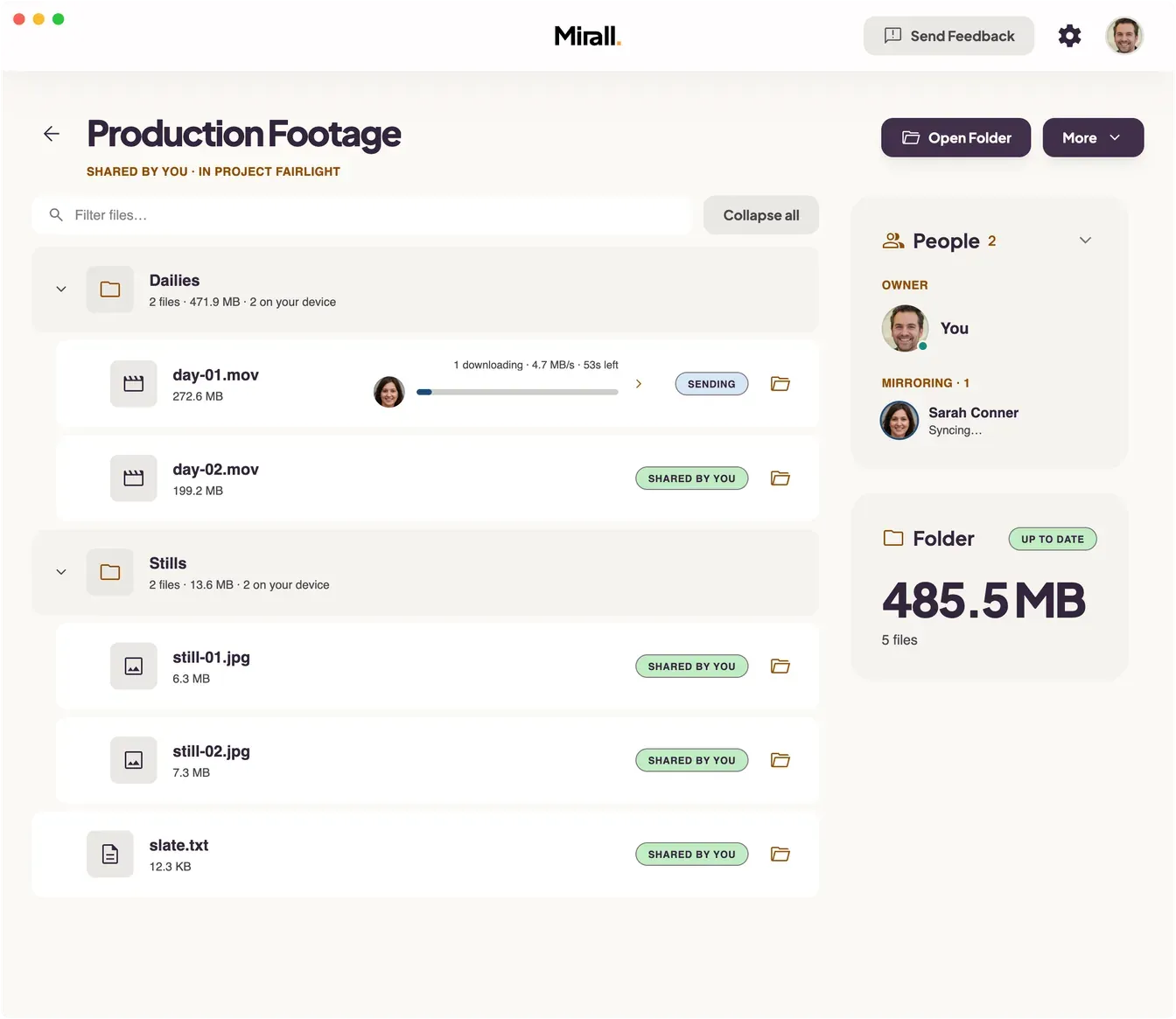
Open a folder and you get one screen whatever your relationship to it — only what you can do with it changes. The header carries the folder's name, who owns it and which space it's in, then one main button (Open Folder, or Mirror to Disk… on a folder you're only browsing) and a More menu. Under that, a band appears whenever the folder is doing something and carries the one control that helps: Pause, Resume, Locate folder…, or Try again. Then the file list, with a filter and an Expand all / Collapse all toggle pinned above it, and two tiles beside it. People names the owner and everyone mirroring the folder, carries the count of both in its heading, and folds away when you don't need it. Folder gives its size, its file count, how many of those are on your device, and its status.
| Folder status | Colour | Meaning |
|---|---|---|
| Up to date | Green | Nothing outstanding — everything the folder holds is where it should be. |
| Adding | Blue | A folder you share is still being read, so part of it isn't offered to the space yet. |
| Syncing | Blue | A folder you mirror is still fetching files from its owner. |
| Paused | Yellow | You've held the folder's work — the reading, on one you share; the fetching, on one you mirror. |
| Missing | Yellow | A folder you share whose source has moved or gone. Members still see the last synced version. |
| Problem | Red | Mirall hit something it can't get past — no permission, a full disk, or a destination that's gone. The band names the reason and offers Try again. Owner and mirrorers both see it, and it clears once the cause is fixed. |
| Owner offline | Grey | A folder you mirror whose owner is away while your copy is still short of theirs. It stops short of claiming to be up to date, and clears on its own when they're back. |
| Browse only | Grey | A folder someone else shares that you haven't mirrored. Download individual files, or mirror the whole thing. |
The space sidebar
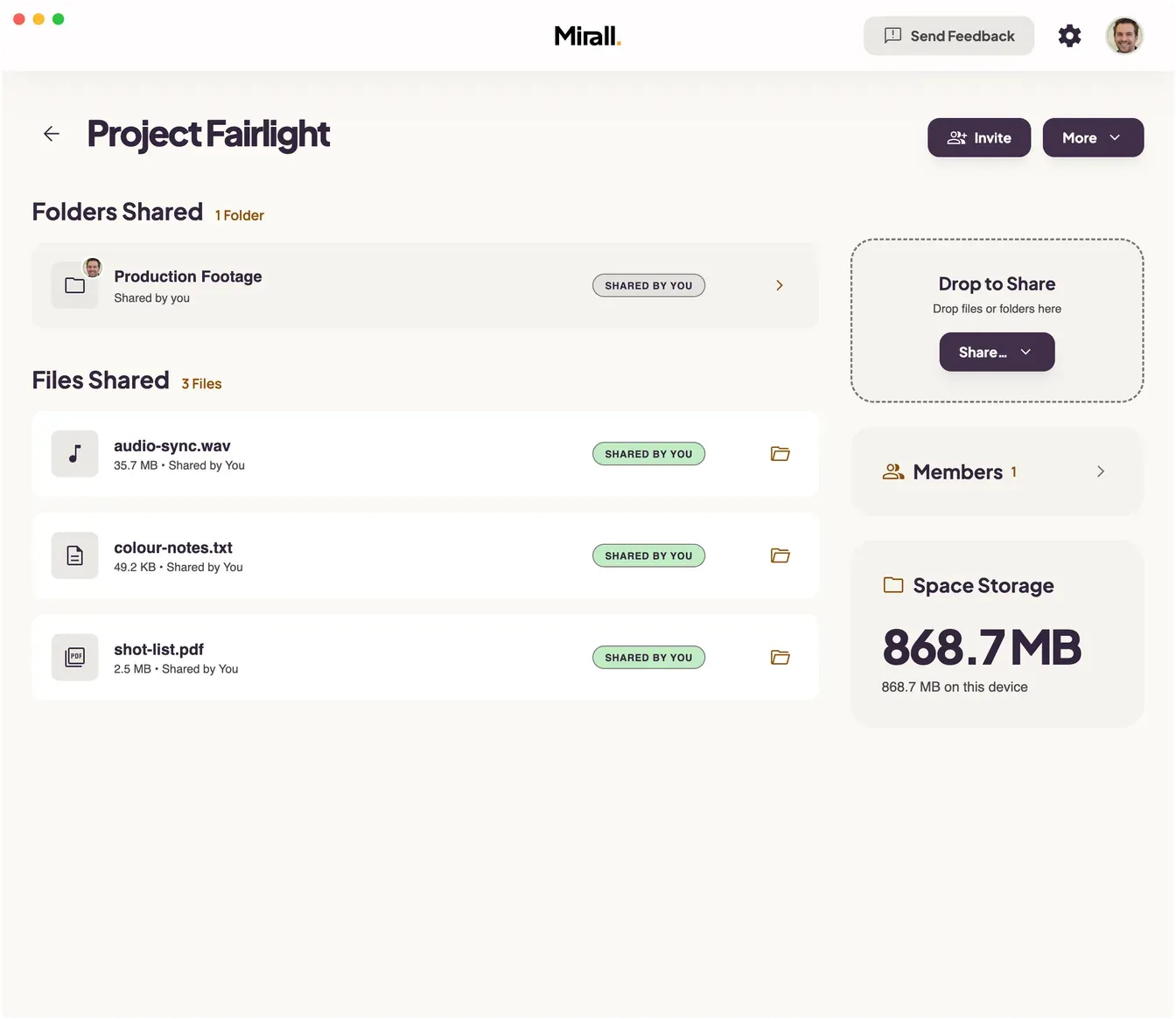
Each space view has a sidebar with a Drop to Share zone and two panels. Members comes first, with a count beside its heading, and folds away when you don't need it; it also switches between a row of avatars and the full list, with Show all and Show less. Each member reads Online, Online · via relay when you reach them through a relay, or Offline. Space Storage sits under it and always states its size. Each space remembers its own arrangement for as long as Mirall is running, so folding Members away in one space leaves the others as you had them. Quitting Mirall returns every space to the default — Members open, as avatars.
File & folder actions
- Download — pull a file another member is offering onto your device.
- Reveal in Folder — open a downloaded or shared file in your OS file browser.
- Unshare from Space — remove a file you added so it's no longer offered (files others already downloaded stay on their devices).
- Browse Files — look inside a shared folder without mirroring it.
- Open Folder — open a folder you share, or a mirror, in your OS file browser.
- Delete Folder — stop sharing a folder you own and remove it from the space.
- Locate folder… — point Mirall at a shared folder that's missing on disk, after moving or reconnecting it.
- Pause Download / Resume — stop a running download and continue it later from where it stopped.
- Cancel — stop a running download outright and throw away what's been received.
- Discard Partial — throw away a paused or stalled download and free the space it was using.
- Retry / Dismiss — reattempt a download that ended in an error, or clear the failed row.
- Mirror to Disk… — keep a live, read-only copy of a shared folder on your computer.
- Pause syncing / Resume syncing — hold a folder's work and pick it back up: the reading, on a folder you share; the fetching, on one you mirror.
- Edit Folder… — rename a folder you share, or move a mirror to a different folder.
- Unmount Mirror — stop mirroring and remove the mirrored copy; the folder reverts to Browse.
- Clear filter — drop the filter above a folder's file list and put every row back.
Keyboard shortcuts
Press ⌘K / Ctrl-K to jump to any space or run any action; press ⌘/ / Ctrl-/ for this list inside the app. Anything without a chord of its own is in the command palette.
| macOS | Windows / Linux | Action |
|---|---|---|
| ⌘K | Ctrl-K | Open the command palette |
| ⌘/ | Ctrl-/ | Show all keyboard shortcuts |
| Enter | Enter | Confirm a dialog |
| ⌘Enter | Ctrl-Enter | Confirm from a text box |
| Esc | Esc | Dismiss a dialog |
| ⌘← | Ctrl-← | Go back to the previous screen |
| ⌘⇧H | Ctrl-H | Jump to your Shared Spaces |
| ⌘1 – ⌘9 | Ctrl-1 – Ctrl-9 | Jump to a space by number — the first nine in your list |
| ⌘, | Ctrl-, | Open Settings |
| ⌘⇧P | Ctrl-Shift-P | Open your Profile |
| ⌘⇧L | Ctrl-Shift-L | Open the Activity Log |
| ⌘N | Ctrl-N | Create a new space |
| ⌘J | Ctrl-J | Join a space with an invite |
| ⌘F | Ctrl-F | Jump to the search box (Activity Log only) |
| ⌘U | Ctrl-U | Add files to the current space |
| ⌘⇧U | Ctrl-Shift-U | Share a folder in the current space |
| ⌘Q | Ctrl-Q | Quit Mirall (from the application menu) |
Settings
The gear icon opens Settings — your preferences for the app itself. Your profile, this device, and the version you're running live separately on the Profile page (click your avatar).
| Page | What's there |
|---|---|
| General | Background mode — “Show Mirall in the menu bar” on macOS, “Run in the background” on Windows and Linux — and Launch at login. |
| Appearance | Theme Mode (Light / System / Dark), Display Size, Language, and — on Windows and Linux — auto-hide the menu bar. |
| Notifications | Master switch, system sound, mute-when-focused, and five per-event toggles. |
| Network | Transfer limits — a download and an upload cap, each Unlimited, a preset, or a figure you type — and Relay, where you add the one relay this device uses and choose when it is reached for. |
| Storage | Download folder — with a warning when Mirall can't reach it — and Mirall's own App Storage, a shared-file index plus the app database. Nothing to run: Mirall keeps it in order itself. |
| Activity Log | Whether activity is recorded, how long events are kept, and actions to export or delete the log. |
The Profile page
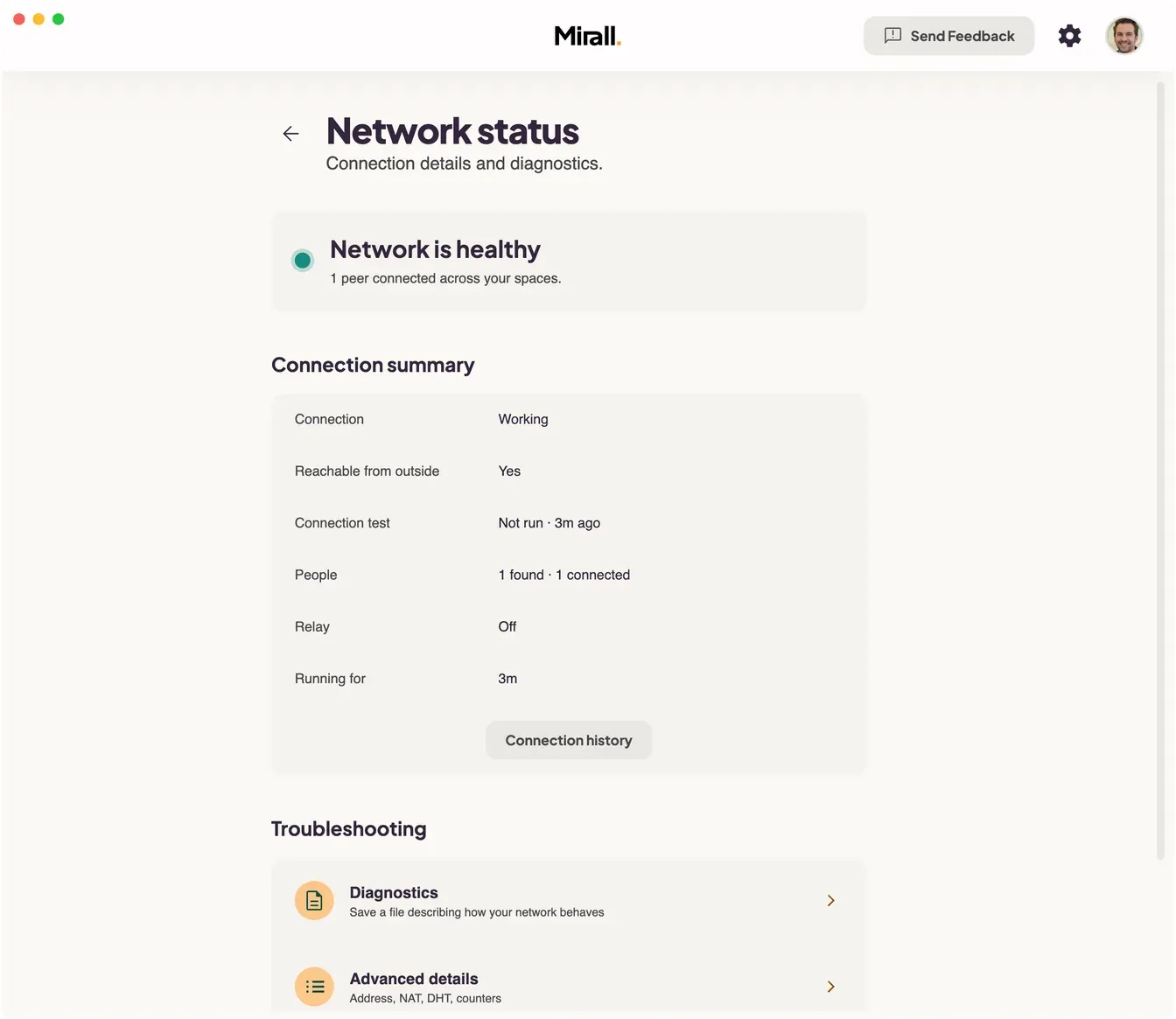
Click your avatar in the top right. Your name and picture sit in a card at the top; everything else is grouped under This device and App.
| Group | Row | What it's for |
|---|---|---|
| Your profile | Display name and picture | Change either, then Save Changes — which appears once there's something to save. Propagates to every space you're in. |
| This device | Connection | Whether other people can reach you, and how many peers you're connected to. Opens Network status — the full diagnostics, and where you save a diagnostics file. |
| This device | Identity protection | How your identity key is protected, normally by your operating system's keychain. Information only — there's nothing to click. |
| This device | Activity Log | Opens the record of what happened in your spaces, and shows how many events are held. |
| App | The version you're running | Plus any pending update waiting to be applied. |
| App | What's new | Recent changes in Mirall. |
| App | Keyboard shortcuts | The full shortcut list. |
| App | Documentation | Opens these docs in your browser. |
| App | Send Feedback | Report a problem or share a suggestion. |
Network status
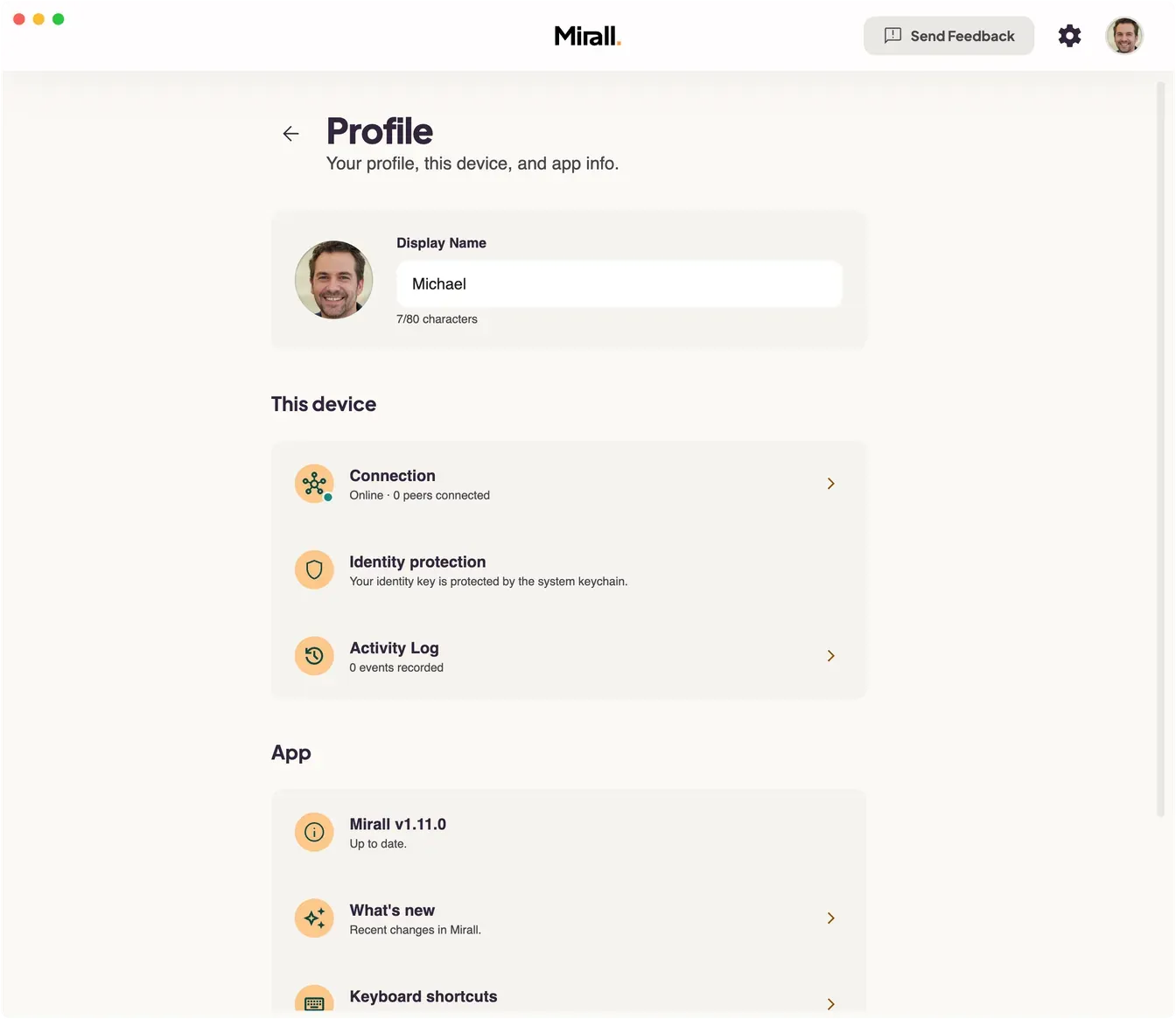
Profile → This device → Connection opens Network status — what Mirall can see about this device's own connection. Nothing here is a setting; it is all diagnostics. The headline, any suggestions and the connection summary are always shown. Relayed connections appears only while a relay is carrying one. Under Troubleshooting, Diagnostics and Advanced details each open as a screen of their own, and a last row opens Settings → Network.
| Section | Row | What it tells you |
|---|---|---|
| Headline | Network is healthy | Mirall can reach other people. Reads out how many peers are connected across your spaces, or that nobody else is online right now. |
| Headline | Checking your connection… | Mirall is still working out how this network behaves. Normal for a few seconds after launch and after waking from sleep. |
| Headline | Limited connection | Connections to many people will fail on this network. A mobile router or phone tethering is the usual cause. |
| Headline | Mirall can't reach other people | Mirall found other people but couldn't connect to any of them. Invites and shares won't arrive while this is the case. |
| Headline | Reconnect | Sits beside any headline other than healthy, and makes Mirall try again straight away instead of waiting for the next automatic attempt. Pressed again within a few seconds, it says Mirall reconnected moments ago instead. |
| Headline | Reconnect now | Appears after a relay change while some connections are still on the old path. Moves them over. |
| Suggestions | Your operating system reports no internet connection | This device has no network at all. Shown on its own — nothing else applies. |
| Suggestions | Couldn't determine your public IP | Mirall can't work out how it appears to the rest of the network, so other people have no way to reach you. |
| Suggestions | Your connection uses changing ports | Your network hands out a different port every time Mirall reaches out, so connections to many people fail. No router setting fixes this one. |
| Suggestions | Your network keeps dropping traffic to the Mirall network | Traffic is getting through unreliably, so transfers may stall. |
| Suggestions | Still working out how this network behaves | Mirall hasn't settled on a verdict yet. Give it a moment. |
| Connection summary | Connection | Working, Limited, Blocked, or Checking… — the headline verdict in one word. |
| Connection summary | Reachable from outside | Yes, or the reason why not: your network uses changing ports, or Mirall can't tell how you appear to others. |
| Connection summary | Connection test | Mirall's own check against a device it knows should answer: Passed, Failed, Test server unavailable, Not run, or Running…, with when it last ran. A failure alone is never taken as proof your network is at fault. |
| Connection summary | People | How many other devices Mirall has found, and how many of those it is connected to. |
| Connection summary | Relay | Used for 2 of 5 people when a relay is carrying connections right now — yours, or another member's while yours is off. Otherwise Not in use when yours is on and nothing has needed it, or Off. |
| Connection summary | Running for | How long this copy of Mirall has been up. |
| Connection summary | Connection history | Opens your activity log filtered to connection events. |
| Relayed connections | Relay | The masked key of the relay carrying the connection, with Reveal and a copy button. Its badge reads Open relay or Private relay when it is the one you configured, or Provided by Sarah when someone else's relay is carrying you. |
| Relayed connections | People | Who is on the other end of each relayed connection, and whether it carries chat, files, or chat and files. One person on their own also gets how long it has been relayed. |
| Troubleshooting | Diagnostics | Opens the Diagnostics screen — saving a file that describes how your network behaves. |
| Troubleshooting | Advanced details | Opens the raw values behind your connection: address, NAT, DHT, relaying counters and the connection test. |
| Troubleshooting | Network settings | Opens Settings → Network — transfer limits and your relay. That screen links back here. |
| Diagnostics | Remove identifying details | On to begin with. Your IP address, keys and space names are shortened or left out — enough for us to diagnose a connection problem. |
| Diagnostics | Include detailed logs | Turns detailed logging on straight away so you can reproduce the problem before saving the file. |
| Diagnostics | Preview what's included | Shows exactly what will be saved, before you save it. |
| Diagnostics | Save diagnostics | Writes the file so you can attach it to a message to us. It describes how your network behaves — not what you share or who with. |
| Connection | Connected peers | How many other devices you are connected to right now. Under Advanced details. |
| Connection | Spaces joined | How many spaces this device is currently following. Under Advanced details. |
| Connection | Last connected | How long ago the most recent connection was made. Under Advanced details. |
| Address | Public IP | The address other devices see. Hidden until you reveal it, and copyable. |
| Address | Public UDP port | The port your router presents to the outside. |
| Address | Local UDP port | The port Mirall listens on locally. |
| Address | Port preservation | Yes — good for direct connections when those two ports match. |
| Address | Your public key | This device's identity. Hidden until you reveal it, and copyable. |
| NAT | Behind firewall | Whether your router looks like it is blocking connections coming in. |
| NAT | Randomised port mapping | Whether your network gives every connection a different port, which makes a direct link harder. |
| NAT | Ephemeral DHT node | Whether this device takes part in the peer directory as a short-lived participant rather than a long-lived one. |
| DHT | Routing-table size | How many peers Mirall knows in the directory it uses to find people. A very small number means it is still getting started. |
| DHT | HyperDHT version | The version of the peer-discovery layer. |
| DHT | Bootstrap nodes | The entry points Mirall used to join the network. Click the count to list them. |
| Relaying | Relayed now | How many connections are going through a relay at this moment. |
| Relaying | Relayed since start | How many connections have been relayed since Mirall started. |
| Relaying | Incoming relayed since start | How many connections dialled in to you arrived over a relay. |
| Relaying | Incoming relay attempts | How many tried to. |
| Relaying | Incoming relay failures | How many of those gave up before they were paired. |
| Relaying | Own relay chosen since start | How many times Mirall reached for the relay you configured. |
| Connection test | Result | The outcome of the last test, in the same words as the summary. |
| Connection test | Test servers found | How many devices answered the lookup the test uses. |
| Connection test | Last checked | When the test last ran. |
What the activity log records
Events fall into five kinds, which are also the filter buttons on the log. Every event is recorded on your device only.
| Kind | What it covers |
|---|---|
| Members | Spaces you created, joined, renamed, or left; invite links you created; join requests, and the ones you approved or declined; a member giving you access; an approval of yours that no longer applies; members joining and leaving. |
| Files | Files you shared or stopped sharing; downloads you finished or that failed; a file of yours someone else downloaded; files a member shared or stopped sharing. |
| Folders | Folder shares you created, renamed, deleted, or moved; folders you mirrored, moved, or stopped mirroring; the same actions by other members, including someone mirroring a folder of yours. |
| Security | File requests Mirall refused, and why; files that failed their integrity check; a space reporting a conflicting owner; a note when repeated events were summarised. |
| Network | Stretches when this device went offline, when Mirall couldn't reach anyone, and when a connection was limited — each closed by a restored entry carrying how long the gap lasted and the cause Mirall settled on. Also members dropping out and coming back, which is recorded only while your own connection is working, and each connection that is made through a relay, naming the relay as yours or as the one that person brought. |
Platforms & languages
- Platforms — macOS (Intel and Apple Silicon), Windows (x64), and Linux (x64 and ARM64).
- Languages — English, German, French, Spanish, and Italian, auto-detected from your OS on first launch.
- Updates — delivered automatically in the background and applied when you next quit and reopen.
- File sizes — no limit. Files are streamed in chunks, so hundreds of gigabytes or a file into the terabytes transfer like any other.
- File counts — up to 100 individual files in a space, and up to 5,000 files in a folder you share. A larger folder someone else shares can still be mirrored in full; only its file list stops at 5,000.